.svg)




In previous parts, we explored various ways to receive arguments and define parameters. Now, let’s examine how common parameters are added and what they do.
Adding the [CmdletBinding()] or [Parameter()] attribute transforms your “simple” function into an “advanced” one. The most noticeable change is the addition of common parameters in IntelliSense, but PowerShell adds many more features behind the scenes.
Note: While we focus on “simple” and “advanced” functions here, the same applies to .ps1 scripts and even anonymous script blocks.
Simple Function
A “simple” function is any function that does not use the [CmdletBinding()] or [Parameter()] attributes.
function Simple-Function
{
  param
  (
    [String]
    $Parameter1,

    [int]
    $Parameter2 = ''
  )

  "Parameter 1: $Parameter1; Parameter 2: $Parameter2"
  "Error: $ErrorActionPreference; Verbose: $VerbosePreference; Debug: $DebugPreference"
  Write-Verbose "This is verbose information."
}
Simple functions use only the parameters you explicitly define yourself:
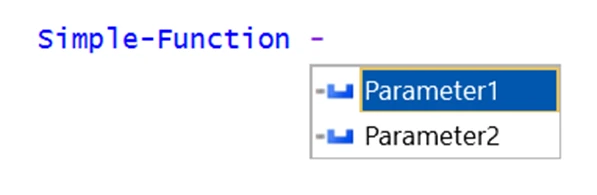
Keep an eye on the output stream preferences that the example function displays for you. This will become important in a moment, as it illustrates a major difference.
Simple functions inherit the global preferences for output streams. You won’t see the verbose message emitted by Write-Verbose unless you have manually (and globally) changed the $VerbosePreference variable.
PS> Simple-Function -Parameter1 Hello -Parameter2 12
Parameter 1: Hello; Parameter 2: 12
Error: Continue; Verbose: SilentlyContinue; Debug: SilentlyContinue

PS> $VerbosePreference = 'Continue'

PS> Simple-Function -Parameter1 Hello -Parameter2 12
Parameter 1: Hello; Parameter 2: 12
Error: Continue; Verbose: Continue; Debug: SilentlyContinue
VERBOSE: This is verbose information.

PS> $VerbosePreference = 'SilentlyContinue'

PS> Simple-Function -Parameter1 Hello -Parameter2 12
Parameter 1: Hello; Parameter 2: 12
Error: Continue; Verbose: SilentlyContinue; Debug: SilentlyContinue
Advanced Function
By adding [CmdletBinding()] or [Parameter()]to your code, PowerShell creates an advanced function. That’s also the reason why you might have seen [CmdletBinding()] attributes in PowerShell code—their sole purpose is to ensure that an advanced function is created.
We can achieve the same with the example function by simply adding [CmdletBinding()]:
function Advanced-Function
{
  # simply adding certain attributes turns
  # simple function into advanced function
  [CmdletBinding()]
  param
  (
    [String]
    $Parameter1,

    [int]
    $Parameter2 = ''
  )

  "Parameter 1: $Parameter1; Parameter 2: $Parameter2"
  "Error: $ErrorActionPreference; Verbose: $VerbosePreference; Debug: $DebugPreference"
  Write-Verbose "This is verbose information."
}
The actual code did not change, so the advanced function behaves the same:
PS> Advanced-Function -Parameter1 Hello -Parameter2 12
Parameter 1: Hello; Parameter 2: 12
Error: Continue; Verbose: SilentlyContinue; Debug: SilentlyContinue
However, PowerShell automatically added all the common parameters:
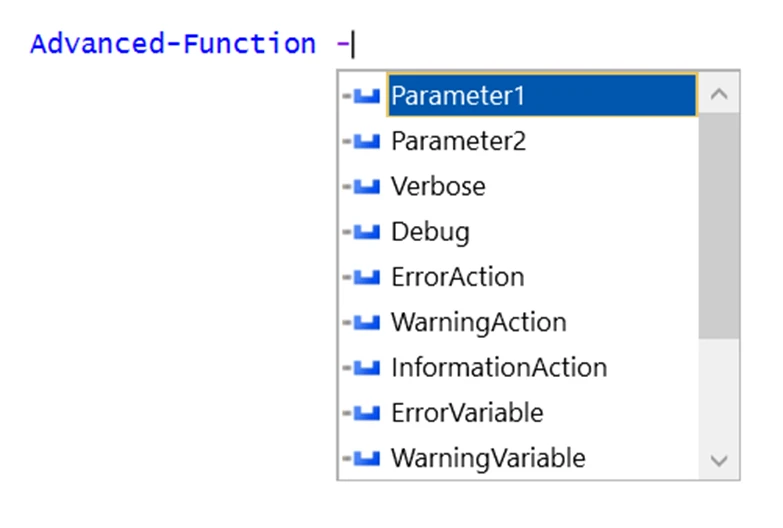
You can now control the output streams individually for your function.
Note below how the common parameter -Verbose makes the message emitted by Write-Verbose visible, and how -ErrorAction changes the $ErrorActionPreference that applies to all cmdlets you call inside your function.
All changes made by common parameters are temporary—they apply only to your script block and won’t permanently change global settings.
PS> Advanced-Function -Parameter1 Hello -Parameter2 12 -ErrorAction Ignore -Verbose
Parameter 1: Hello; Parameter 2: 12
Error: Ignore; Verbose: Continue; Debug: SilentlyContinue
VERBOSE: This is verbose information.
Note: The new temporary preference settings are inherited by all nested script blocks, advanced functions, and cmdlets that you call from inside your function. Their verbose messages (if any) will also appear when you use -Verbose on your function.
Simple vs. AdvancedFunction
Even if you don’t care much about output streams, many other important features rely on advanced functions.
For example, $PSDefaultParameterValues allows users to define new global default values for command parameters. This also requires advanced functions—it won’t work with simple functions.
Here’s a test example: the line below defines a new default value "New Default Value!" for any advanced function or cmdlet with a parameter named -Parameter1, provided the command name ends with"-Function":
$PSDefaultParameterValues.Add('*-Function:Parameter1', 'New Default Value!')
Let’s test how both functions deal with this:
PS> Simple-Function
Parameter 1: ; Parameter 2: 0
Error: Continue; Verbose: SilentlyContinue; Debug: SilentlyContinue

PS> Advanced-Function
Parameter 1: New Default Value!; Parameter 2: 0
Error: Continue; Verbose: SilentlyContinue; Debug: SilentlyContinue
Only the advanced function honors the new default value; the simple function ignores $PSDefaultParameterValues.
Note: To clear all external default values after testing, run:
PS> $PSDefaultParameterValues.Clear()Hiding Common Parameters
There’s just one caveat with advanced functions: they may clutter their parameter IntelliSense menu with common parameters that a typical user may not need. The user might just want a focused IntelliSense menu showing only the parameters that matter to him/her.
Advanced functions can hide one or more parameters, allowing you to fine-tune which are visible and which are hidden. Once you hide at least one parameter, PowerShell also hides the common parameters.
So, if you just want to hide the common parameters, add a hidden dummy parameter.
Note: Hidden parameters (including hidden common parameters) are still present—they’re just hidden from IntelliSense. You can still manually type them if you know them from memory.
Let’s add a hidden dummy parameter to our example to hide all common parameters:
function Advanced-Function
{
  # simply adding certain attributes turns
  # simple function into advanced function
  [CmdletBinding()]
  param
  (
    [String]
    $Parameter1,

    [int]
    $Parameter2 = '',

    # add a hidden dummy parameter to also hide all common parameters
    [Parameter(DontShow)]
    $DummyParameter
  )

  "Parameter 1: $Parameter1; Parameter 2: $Parameter2"
  "Error: $ErrorActionPreference; Verbose: $VerbosePreference; Debug: $DebugPreference"
  Write-Verbose "This is verbose information."
}
Now your advanced function looks like a simple function, showing only your parameters in IntelliSense:
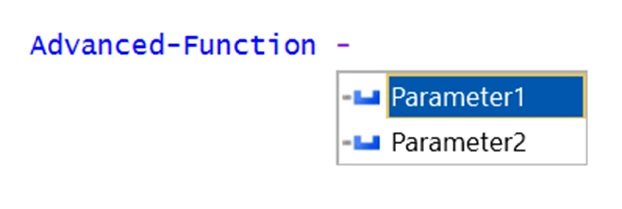
The hidden parameters still work, so if you add -Verbose, all verbose messages will still appear:
PS> Advanced-Function
Parameter 1: ; Parameter 2: 0
Error: Continue; Verbose: SilentlyContinue; Debug: SilentlyContinue

PS> Advanced-Function -Verbose
Parameter 1: ; Parameter 2: 0
Error: Continue; Verbose: Continue; Debug: SilentlyContinue
VERBOSE: This is verbose information.
Conclusion
For consistency’s sake, make sure your functions are indeed advanced functions. It’s simple: add [CmdletBinding()] to your param() block as described above.
Even if you don’t personally care about functionality that relies on advanced functions, other users likely do. Especially when you publish or export your functions to modules, it’s highly recommended to ship advanced functions.
Related links
- ScriptRunner ActionPacks will help you automate tasks
- Try out ScriptRunner here
- ScriptRunner: Book a demo with our product experts