.svg)


Python and PowerShell are two of the most used IT automation technologies. Let's try to compare them.
In the realm of IT automation, two powerful tools have emerged as front-runners for automating tasks, managing systems, and streamlining operations: Python and PowerShell. Both technologies have evolved significantly since their inception, each carving out its niche in the IT world. This article delves into the history, compares the two technologies, provides real-life examples for both platforms, and lists their pros and cons.
A little IT automation history
Python was created by Guido van Rossum and first released in 1991. It was designed with the goal of being easy to read and write, making it accessible to beginners while powerful enough for experts. Python's philosophy emphasizes code readability and simplicity, which has contributed to its widespread adoption in various fields, including web development, data analysis, artificial intelligence, and, of course, IT automation.
PowerShell, on the other hand, was developed by Microsoft and released in 2006 as Windows PowerShell. It was designed as a task automation and configuration management framework, consisting of a command-line shell and scripting language built on the .NET framework. In 2016, Microsoft made PowerShell open-source and enhanced its versatility by making it available on Linux and macOS. PowerShell aims to improve the command-line and scripting environment by providing a powerful automation tool set for Windows, Linux and macOS administration.
Syntax and usage
The basic syntax of Get-Help is straightforward:
Get-Help <Name> [-Full] [-Examples] [-Parameter <Name>] [-Online]
- <Name>: The name of the cmdlet, function, script, or concept you want help with.
- -Full: Displays complete help information, including descriptions, parameters, examples, and additional notes.
- -Examples: Shows examples of how to use the cmdlet.
- -Parameter: Provides detailed information about a specific parameter of the cmdlet.
- -Online: Opens the online version of the help document in your default web browser, providing the most up-to-date information.
How to start using Get-Help
Display help information about the PowerShell help system:
Get-Help
To understand how a particular cmdlet works, simply use Get-Help followed by the cmdlet's name. For instance, to learn about Get-Process, you would enter:
Get-Help Get-Process
In case you don't know the exact name of a cmdlet, you can work with wildcards:
Get-Help Get-Pr*
Another way of asking for help:
Get-Process -?
You want to learn about conceptual PowerShell topics? Use about_to specify what you are looking for. To retrieve information about how ForEach loops work:
Get-Help about_ForEach
More helpful options
For those seeking comprehensive details, the -Full parameter is invaluable. It gives you everything you need to know about a cmdlet, including detailed parameter descriptions and inputs/outputs.
Get-Help Get-Process -Full
If you're looking for practical usage examples, the -Examples parameter will be particularly useful. It shows various ways to use the cmdlet in real-world scenarios, helping you understand the cmdlet's versatility.
Get-Help Get-Process -Examples
The -Online parameter lets you access the most current help documentation available on the internet. It will open a browser windows and display the Microsoft online article.
Get-Help Get-Process -Online
With -ShowWindow you can open the PowerShell help system in a separate Window.
Note: This parameter only works on a Windows machine.
Get-Help Get-Process -ShowWindow
Keep your PowerShell help up-to-date
As PowerShell evolves, so does its documentation. New cmdlets are introduced, and existing ones are updated with new features and parameters. To ensure that the help content on your system is current, PowerShell provides the Update-Help cmdlet. This cmdlet downloads and installs the latest help files for PowerShell modules, ensuring that when you use Get-Help, you're getting the most recent information available.
Update-Help downloads the latest help files from the internet and updates the help content on your system for installed modules. It's a simple yet powerful way to keep your help documentation in sync with the latest PowerShell versions and capabilities.
The basic syntax of Update-Help is as follows:
Update-Help [-Module <String[]>] [-Force] [-UICulture <CultureInfo[]>] [-Credential <PSCredential>]
- -Module <String[]>: Specifies the modules to update help for. If not specified, Update-Help updates all modules that support updatable help and are installed on your computer.
- -Force: Forces an update of help files, even if they have been updated within the last 24 hours.
- -UICulture <CultureInfo[]>: Specifies the UI culture (language) for the updated help files. This is useful if you prefer help content in a specific language.
- -Credential <PSCredential>: Provides credentials that have permission to access the internet if your environment requires authentication.
To update help content for all modules that support updatable help, simply run:
Update-Help
You want to update help files for a specific module? No problem. Here's an example that updates only help for the Applocker module:
Update-Help -Module Applocker
Conclusion
The Get-Help and Update-Help cmdlets are more than just features; they are foundational tools that enable users to harness the full power of PowerShell. By making these cmdlets a part of your daily workflow, you ensure that you're always equipped with the latest knowledge and best practices to tackle any task in PowerShell efficiently and effectively.
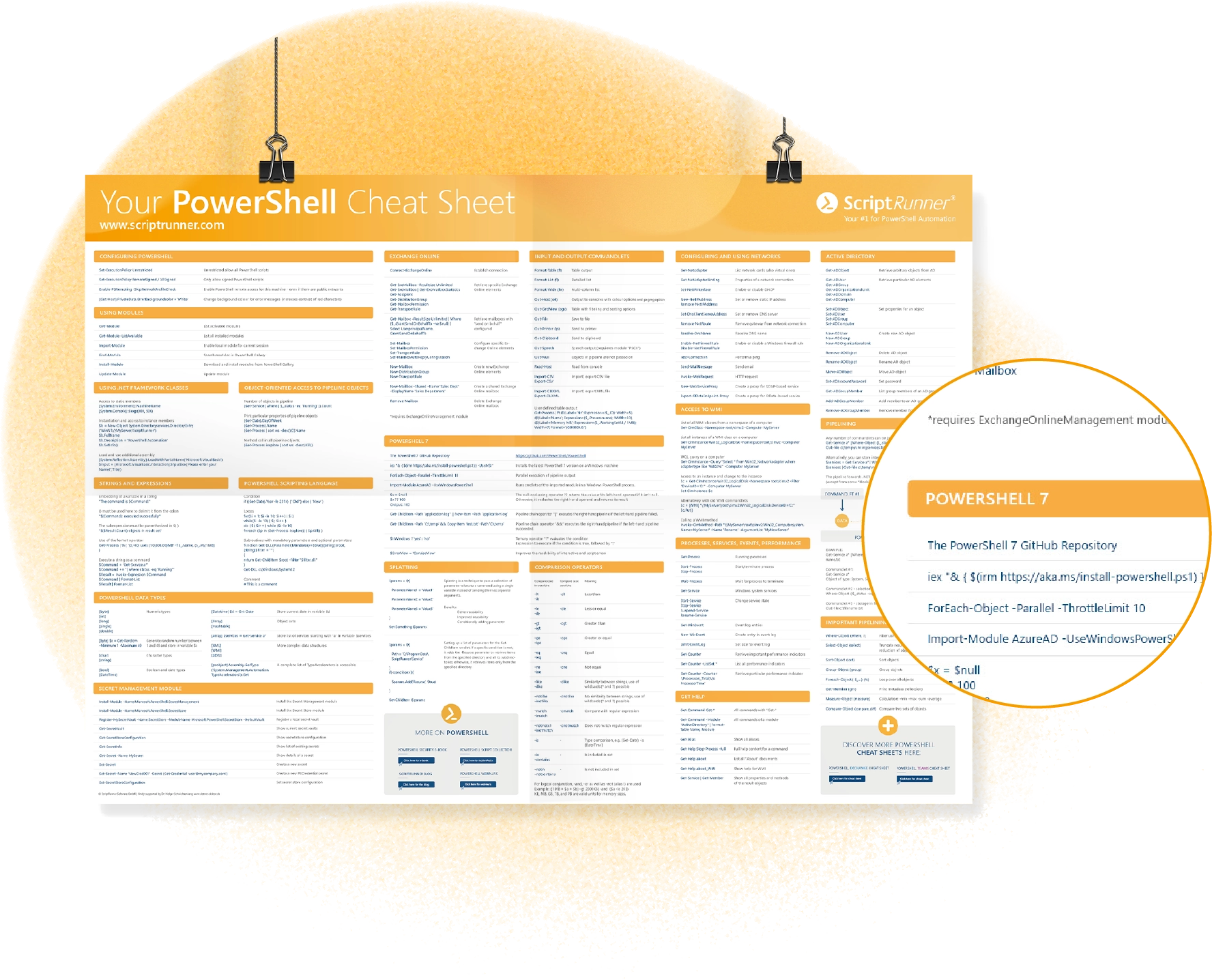
Your ultimate PowerShell cheat sheet
Unleash the full potential of PowerShell with our handy poster. Whether you're a beginner or a seasoned pro, this cheat sheet is designed to be your go-to resource for the most important and commonly used cmdlets.The poster is available for download and in paper form.
Related links
- ScriptRunner ActionPacks will help you automate tasks
- Try out ScriptRunner here
- ScriptRunner: Book a demo with our product experts