.svg)




In a previous tip, we introduced the brilliant free PowerShell module PwshSpectreConsole, which can be installed like so:
PS> Install-Module PwshSpectreConsole -Scope CurrentUser Just be aware that this module currently does not run in Windows PowerShell—it requires PowerShell7. In this final part, we’ll dig a bit deeper into the module and present some examples. All examples assume that you’ve installed the module and are running PowerShell7 (not Windows PowerShell).
Confirm Messages with Timeout
Confirmation messages can be important in scripts, but at the same time, you want to ensure they don’t block a script indefinitely or prevent it from running unattended. That’s exactly what Read-SpectreConfirm does:
PS> $answer = Read-SpectreConfirm -Prompt "Restart Server?" -DefaultAnswer "n" -TimeoutSeconds 5 -Color redWhen the TimeoutSeconds period elapses without a response, the default answer is returned.
Multi-Confirm with Timeout
If you’d like to offer a multi-selection list, use Read-SpectreMultiSelectionGrouped. It can display any number of choice groups, and all selected items are returned. Like Read-SpectreConfirm, you can define a timeout so the cmdlet won’t block unattended scripts.
In this example, all processes with a window are displayed as options, and in another group, three process priorities are shown:
# choices are an array of hash tables
# Name :    Choice
# Choices : Array of Choices
#
# Multiple choices are supported

$choices = @(
    @{
       Name = "Process"
       Choices = Get-Process | Where-Object MainWindowTitle | Select-Object -ExpandProperty Name -Unique
    },

    @{ Name = "Priority"
       Choices = "AboveNormal", "Normal", "BelowNormal"
    }
)

$selected = Read-SpectreMultiSelectionGrouped -Title "Adjust Process Priority" -Choices $choices -AllowEmpty
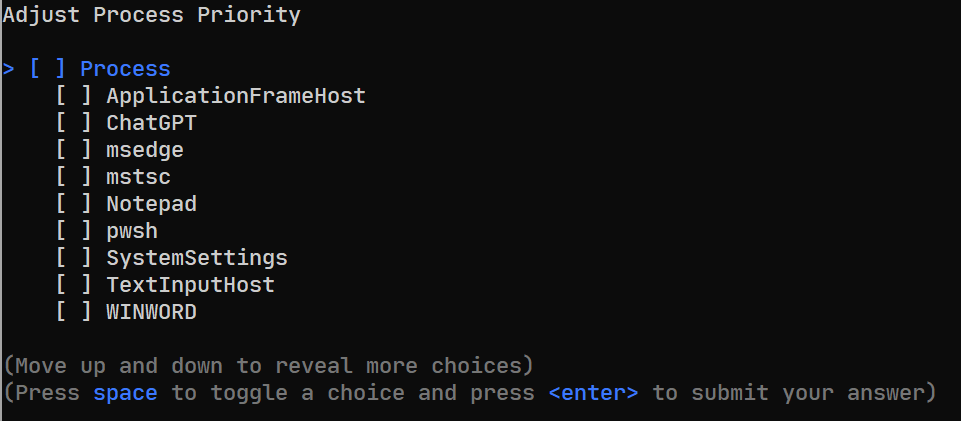
Note that choices need to be unique, which is why in this simple example, Select-Object -Unique is used to filter out any duplicate process names.
Displaying Tables
With PwshSpectreConsole, it’s trivial to create data tables. This example creates a table listing all running processes that have a window, along with how long ago each process was started:
Get-Process |
  Where-Object MainWindowTitle |
  Sort-Object StartTime -Descending |
  Select-Object -Property StartTime,
Name,
Id,
PriorityClass,
@{
  N='Minutes ago'
  E={
   (New-Timespan -Start $_.StartTime).TotalMinutes -as [int]
  }
} |
  Format-SpectreTable
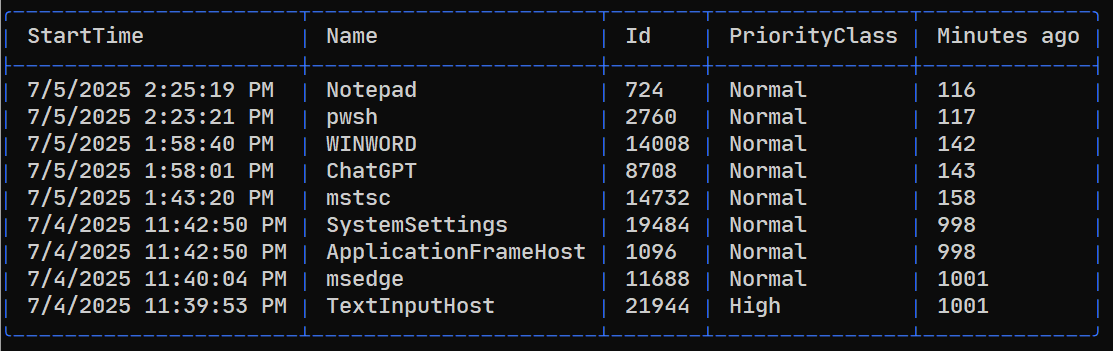
Format-SpectreTable does the heavy lifting: just pipe the objects to it, and it renders the table for you.
Related links
- ScriptRunner ActionPacks will help you automate tasks
- Try out ScriptRunner here
- ScriptRunner: Book a demo with our product experts