.svg)




With the free PowerShell module PwshSpectreConsole, you can create brilliant text-based user interfaces that display in the PowerShell console—without any programming. The only caveat is that this currently works only in PowerShell 7, not in Windows PowerShell. If you haven’t done so yet, simply download and install PowerShell 7 from its official source:
👉https://github.com/PowerShell/PowerShell/releases/latest
Installing Module
The module can be installed via Microsoft’s PowerShellGallery. Just make sure you run the command from within PowerShell 7, not Windows PowerShell:
PS> Install-Module PwshSpectreConsole -Scope CurrentUser When the module is installed, get familiar with its capabilities by running the following command:
PS> Start-SpectreDemo Note: Make sure you run this command in a PowerShell 7 console. You can also use the module in VS Code’s integrated terminal,as long as it’s configured to use PowerShell 7. However, the module will not load in Windows PowerShell.
Understanding Capabilities
When you run the PwshSpectreConsole demo, it walks you through all of its capabilities. In the upper part, you’ll see the PowerShell code; in the lower part, it displays the user interface elements created by that code.
Here is a sample of what this looks like:
── Select Lists ──────────────────────────────────────

Select lists are helpful for presenting multiple options to the user in an organized manner. They enable users to choose one option from a list, simplifying decision-making and input tasks and reducing the chances of errors. The list will also paginate if there are too many options to show all at once.
                                                                                                                                                                 pwsh
1 $choices = @("Pizza", "Sushi", "Tacos", "Pad Thai", "Lobster", "Falafel", "Chicken Parmesan","Ramen","Fish and Chips", "Biryani", "Croissants", "Enchiladas", "Shepherd's Pie", "Gyoza","Fajitas", "Samosas", "Bruschetta", "Paella", "Hamburger", "Poutine", "Ceviche")
2
3 $food = Read-SpectreSelection `
4             -Title "What's your favourite [blue]food[/]?" `
5             -Choices $choices

What's your favourite food?

> Pizza
  Sushi
  Tacos
  Pad Thai
  Lobster

(Move up and down to reveal more choices)
Using PwshSpectreConsole Commands
Once you're ready, use one or more of the new PwshSpectreConsole commands in your own scripts. For example, if you'd like to present a choice selector, copy the sample from the demo walkthrough and adjust it as needed.
Here’s an example that lists all running applications in a menu. The user can use the arrow keys to select an item. The selected application is then terminated (remove -WhatIf to actually kill the application).
$choices = Get-Process | Where-Object MainWindowTitle | ForEach-Object { '{0} ({1})' -f $_.Name, $_.Id }
$selected = Read-SpectreSelection -Title 'Select Process to Kill' -Choices $choices
$null = $selected -match '\((\d{1,})\)$'
$id = $matches[1]
Stop-Process -Id $id -WhatIf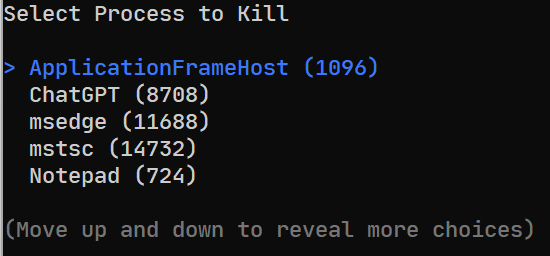
Remarks
The module author recommends changing the console encoding to UTF-8, like so:
PS C:\> $OutputEncoding = [console]::InputEncoding = [console]::OutputEncoding = New-Object System.Text.UTF8Encoding The module uses the open-source Spectre.Console library:
🔗https://spectreconsole.net/best-practices
Your ultimate PowerShell Cheat Sheet
Unleash the full potential of PowerShell with our handy poster. Whether you're a beginner or a seasoned pro, this cheat sheet is designed to be your go-to resource for the most important and commonly used cmdlets. The poster is available for download and in paper form.
Related links
- ScriptRunner ActionPacks will help you automate tasks
- Try out ScriptRunner here
- ScriptRunner: Book a demo with our product experts