.svg)


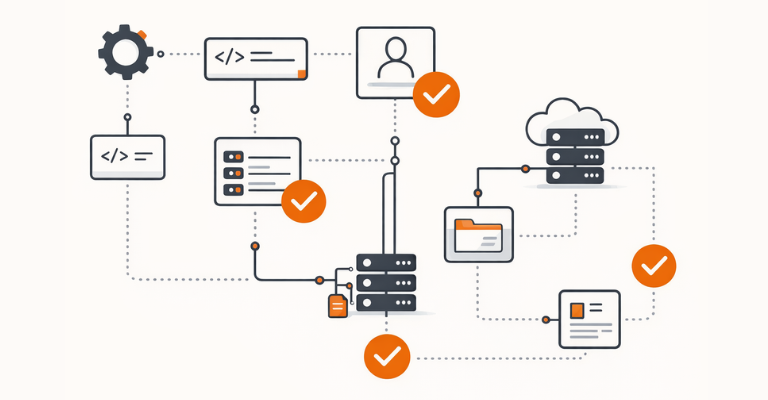

Sensitive automation tasks—creating user accounts, modifying group memberships, changing infrastructure configurations—should not run without someone explicitly approving them. Yet in most environments, the approval process for automation is informal at best: a Slack message, a verbal sign-off, or a ticket that gets closed after the fact. ScriptRunner’s built-in approval workflows change this by making approval a technical gate on the Action itself, so that sensitive automations cannot execute until the right person reviews and approves the request.
The Problem with Informal Approvals
In many IT teams, approvals for automation tasks happen outside the automation itself. Someone sends a message asking if it is okay to run a script. A team lead replies with a thumbs-up. The script runs. If anyone asks later whether the execution was approved, the evidence is a chat message buried in a channel history—if it still exists at all.
This works when the stakes are low and the team is small. But as automation scales and touches production systems, identity management, or security-sensitive configurations, informal approvals become a real governance problem. There is no enforced gate preventing execution. There is no structured record of who approved what. And there is no way to prove to an auditor that a specific automation ran only after explicit authorization.
The risk is not hypothetical. A helpdesk operator runs a user provisioning script with the wrong parameters. A cleanup job executes against a production target instead of a test environment. In both cases, the question after the fact is the same: who approved this? And the answer is usually that nobody formally did.
Why Ticketing Systems Do Not Close the Gap
Some organizations try to solve this by routing approvals through their ITSM or ticketing system. A change request is created, approved in the ticket, and then someone manually runs the automation. This adds a layer of process, but it does not add a layer of enforcement.
The problem is that the approval and the execution are disconnected. The ticket says the change was approved, but nothing technically prevents someone from running the automation before the ticket is approved, or running it with different parameters than what was requested. The ticketing system governs intent. It does not govern execution.
For compliance teams, this disconnect is difficult to defend. Auditors do not just want to see that a change was approved somewhere in a ticketing system. They want to see that the approved change is exactly what executed, and that execution was blocked until approval was granted.
How ScriptRunner Builds Approval Directly into Execution
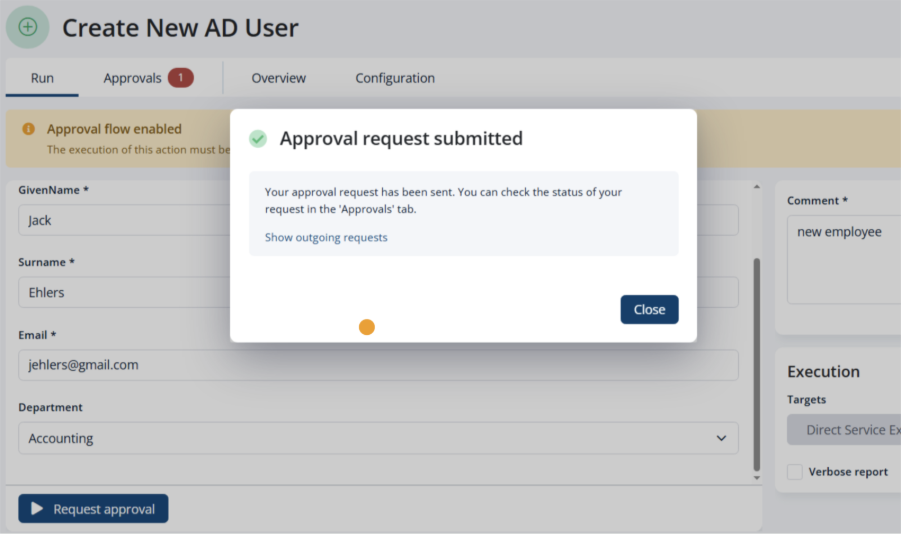
ScriptRunner solves this by embedding the approval step directly into the Action’s execution flow. When approval is enabled on an Action, the normal Run button is replaced with a Request Approval button. The automation cannot execute until an authorized approver explicitly approves the request. This is not a process convention—it is a technical enforcement. No approval, no execution.
The requester fills in the Action’s parameters—for example, the given name, surname, and email for a new AD user—adds a mandatory comment explaining the reason for the request, and submits it. The request is then queued and assigned to the designated approvers. Until one of them approves, the Action does not run.
Configuring Approval Flows per Action
Approval flows are configured at the Action level, in the Configuration tab under Run Options. Enabling the approval flow is a single checkbox. Once enabled, you define who is entitled to approve by selecting one or more access groups.
ScriptRunner also allows you to define a “No approval needed” group. Users in this group can execute the Action directly, bypassing the approval requirement. This is useful for senior administrators or service accounts that should not be gated, while ensuring that helpdesk users or delegated operators always go through the approval process.
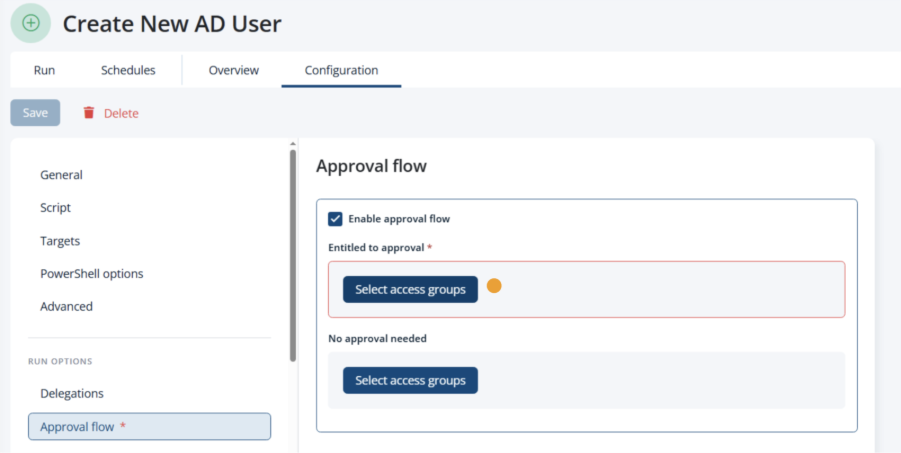
This per-Action granularity means you can require approval for high-risk automations—such as creating AD users or modifying security group memberships—while leaving low-risk tasks like report generation ungated. The approval requirement follows the Action, not the user’s role alone, giving you precise control over which automations require oversight.
The Requester Experience: Request, Comment, Track
When a user triggers an Action that requires approval, they fill in the parameters as usual and provide a mandatory comment—for example, “new employee” or “requested by HR for onboarding.” After clicking Request Approval, they receive a confirmation that the request has been submitted.
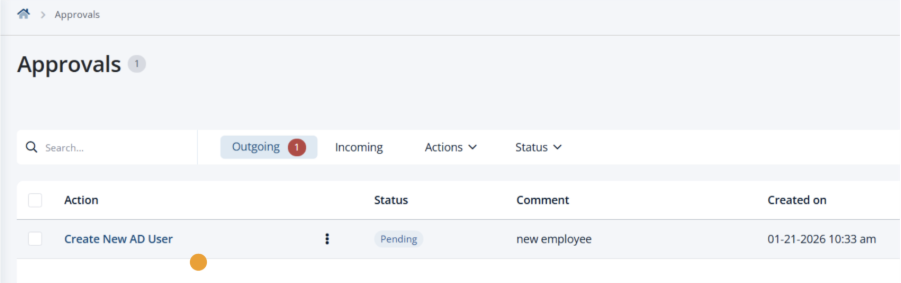
The requester can track the status of their request in the Approvals section under the Outgoing tab. Each request shows the Action name, current status, the comment provided, and the date it was created. There is no ambiguity about what was requested or where it stands in the process.
The Approver Experience: Review, Approve, or Reject
Approvers see incoming requests in their own Approvals queue under the Incoming tab. Opening a request shows the full context: who requested it, when it was requested, the deadline for approval, and the comment explaining the reason. Separate tabs let the approver inspect the exact parameters and targets that will be used when the Action executes.
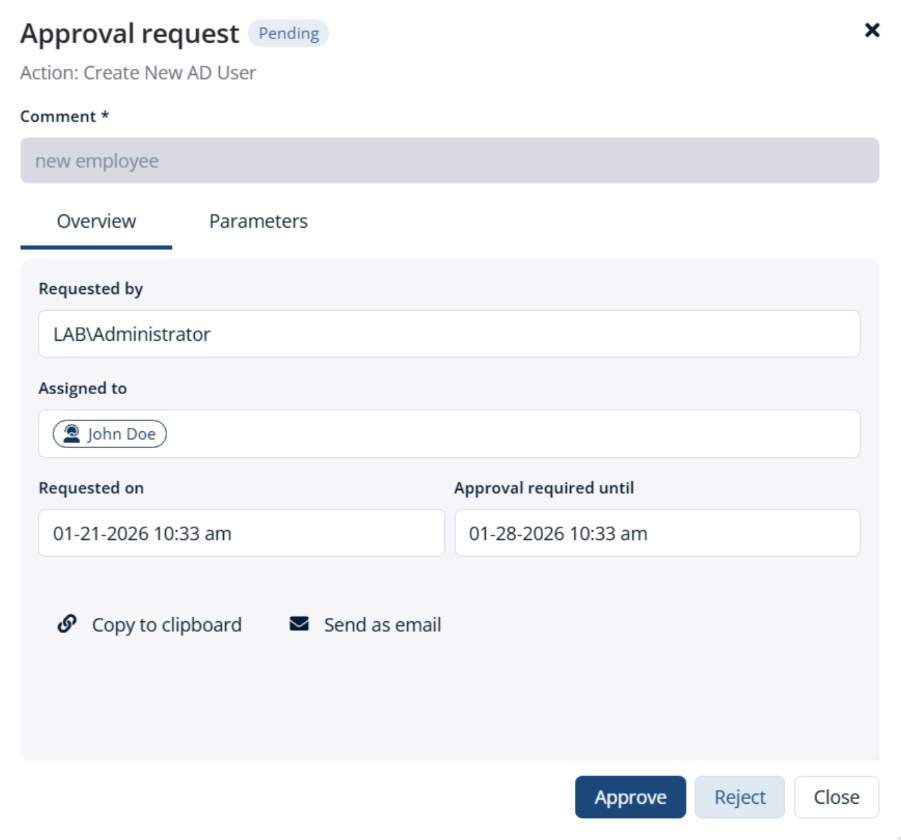
The approver can also share the request via email or copy it to the clipboard to coordinate with other stakeholders if needed. Once the approver is satisfied, they click Approve to release the Action for execution, or Reject to block it. The decision is recorded and becomes part of the Action’s audit trail.
This means the approver reviews the exact same parameters that will be used in execution. There is no gap between what was approved and what runs. The approval and the execution are the same event, connected by the same record.
Audit Trail: Every Approval Decision Is Recorded
Every approval request in ScriptRunner is fully logged: who requested execution, who approved or rejected it, when the decision was made, and what parameters were submitted. Combined with ScriptRunner’s execution audit trail, this creates a complete chain of accountability from request through approval to execution result.
When a compliance auditor or security team asks whether a particular automation was authorized before it ran, the answer is not a Slack screenshot or a ticket reference in a separate system. It is a structured record inside the same platform that executed the automation, linking the approval decision directly to the execution.
Key Takeaways
- Approval flows are configured per Action with a single checkbox, giving you granular control over which automations require oversight
- Approvers are assigned by access group, and a “No approval needed” exemption can be set for trusted administrators
- Execution is technically blocked until approval is granted—this is enforcement, not process convention
- Requesters provide a mandatory comment and can track request status in the Outgoing approvals queue
- Approvers review the exact parameters and targets before approving or rejecting
- Approval requests include a deadline and can be shared via email for coordination
- Every approval decision is recorded as part of the audit trail, linked directly to the execution result
Bottom Line
Informal approvals—chat messages, verbal sign-offs, disconnected tickets—do not hold up under audit scrutiny, and they do not prevent unauthorized execution. ScriptRunner’s built-in approval workflows turn approval into a technical gate: sensitive Actions cannot run until the right person reviews the request, sees the exact parameters, and explicitly approves. The result is a governed, auditable approval process that lives inside the automation platform itself, not alongside it in a separate tool.
To see how built-in approval workflows can strengthen your automation governance, book a meeting with us.