.svg)


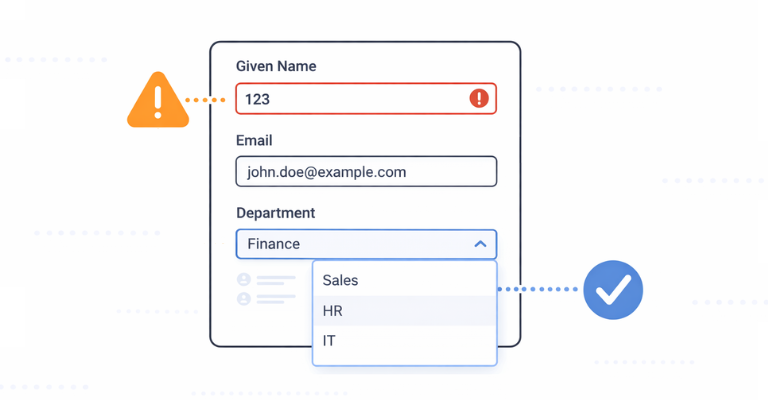

Every automation script that accepts user input is a potential source of bad data. A name with numbers in it, an email address missing the @ sign, a department typed as free text instead of selected from a list. These mistakes happen constantly, and they create objects in Active Directory, Exchange, or Azure that someone has to clean up manually.
PowerShell already has the tools to prevent this: ValidatePattern, Mandatory parameters, and typed inputs. But when scripts run from the command line, that validation only helps people who know PowerShell. ScriptRunner changes this by reading your script’s parameter block and automatically generating a validated form that enforces your rules before execution, for every user, regardless of their technical skill.
The Cost of Bad Input in Automation
Bad input in automation is not a theoretical risk. It happens every time a helpdesk operator runs a user provisioning script and types a name with a trailing space, enters a malformed email address, or picks a department from memory instead of from an approved list. The script accepts the input, creates the object, and the mistake only surfaces later: a login that does not work, a mailbox that bounces, or a compliance report that shows inconsistent data.
The cleanup cost is disproportionate. Fixing a single mistyped AD user account can involve updating multiple systems, notifying the affected user, and documenting the correction for audit. Multiply that across dozens of delegated operators running scripts daily, and input errors become a steady drain on productivity.
In many environments, the response to this problem is adding more documentation: naming conventions in a wiki, formatting rules in a shared document, or training sessions explaining how to enter data correctly. But documentation does not enforce anything. People forget, ignore, or simply do not read it. What is needed is technical enforcement at the point of input.
Why Script-Level Validation Alone Is Not Enough
PowerShell has robust parameter validation built into the language. A well-written script can use ValidatePattern with regex to enforce formats, Mandatory to require fields, and ValidateSet or type constraints to limit acceptable values. For administrators running scripts from the console, this works well.
But automation is increasingly delegated. Helpdesk operators, team leads, and even end users are given access to run specific scripts for tasks like user provisioning, group management, or mailbox configuration. These users do not work in a PowerShell console. They do not read error messages like “Cannot validate argument on parameter ‘Email’. The argument ‘john.doe’ does not match the pattern.” They need a guided interface that prevents bad input before the script runs, not a cryptic error after it fails.
There is also the consistency problem. When validation lives inside individual scripts, every script author implements it differently. One script validates email formats with regex, another does not. One script makes Department mandatory, another treats it as optional. There is no central standard, and no way to ensure that every script follows the same rules.
How ScriptRunner Turns Parameters into Validated Forms
When you create an Action in ScriptRunner from a PowerShell script, ScriptRunner reads the script’s param block and automatically generates a form from it. Every parameter becomes a form field. The type, validation rules, and mandatory flags defined in the script are translated directly into the form’s behavior.
This means the script author defines validation once, in native PowerShell, and ScriptRunner enforces it visually for every user who runs the Action. There is no separate form builder, no duplicated configuration, and no divergence between what the script expects and what the form allows.
Regex Patterns, Mandatory Fields, and Type Constraints
Consider a script for creating a new AD user. The param block defines three mandatory string parameters with regex validation, and an optional Department parameter:
[CmdletBinding()]
param(
[Parameter(Mandatory = $true)]
[ValidatePattern('^[A-Za-z]+$')]
[string]$GivenName,
[Parameter(Mandatory = $true)]
[ValidatePattern('^[A-Za-z]+$')]
[string]$Surname,
[Parameter(Mandatory = $true)]
[ValidatePattern('^[\w._%+-]+@[\w.-]+\.[a-zA-Z]{2,}$')]
[string]$Email,
[string]$Department
)
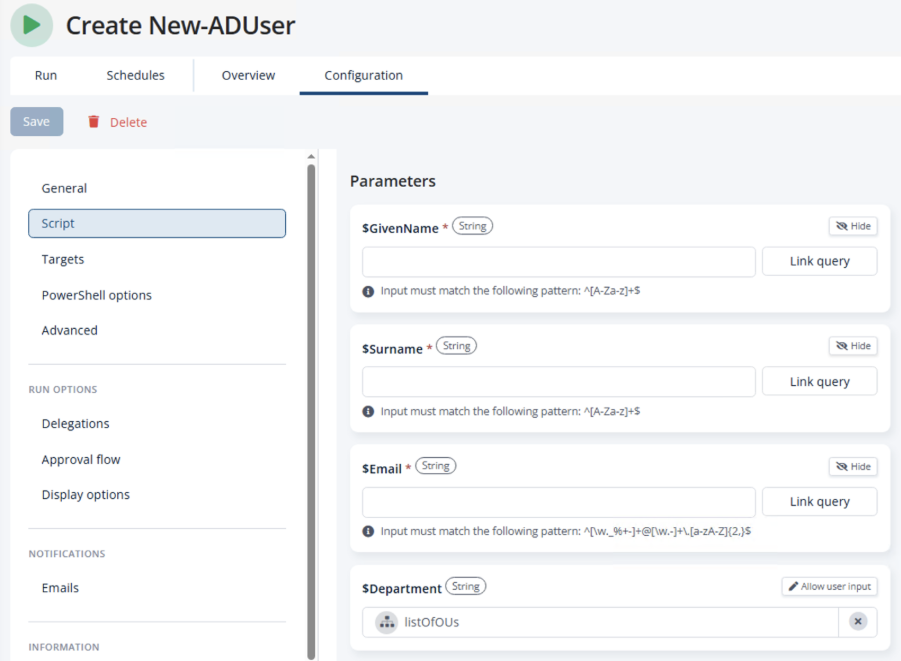
ScriptRunner reads this and generates a form with three mandatory text fields (marked with a red asterisk) and one optional field. In the Action’s parameter configuration, each field shows its type, the regex pattern it must match, and options to hide it from end users or link it to a query.
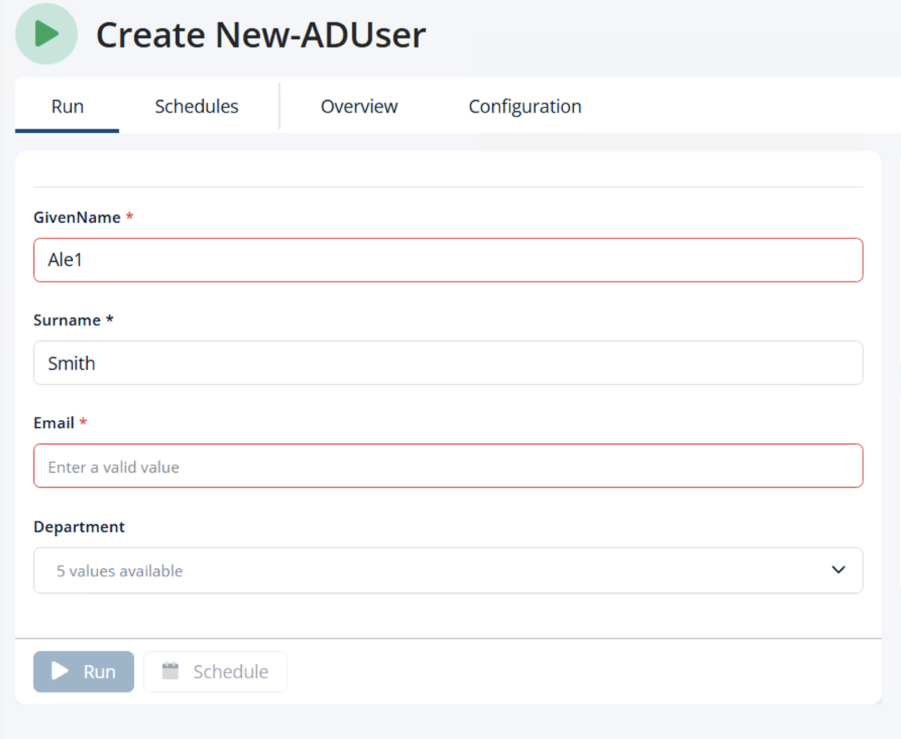
When a user enters invalid input (for example, “123” in the GivenName field), the field is highlighted in red and execution is blocked. The user cannot click Run until all fields contain valid data. There is no error message to parse, no failed execution to clean up. The bad input is stopped before the script ever runs.
Dropdown Selections with Queries: No Free-Text Where It Does Not Belong
For parameters like Department, free-text input is the wrong approach entirely. A user should not type “Accounting” from memory when there are five valid departments. Misspellings, abbreviations, and inconsistent casing create data quality problems that are difficult to catch and expensive to fix.
ScriptRunner solves this with Queries. A Query is a reusable data source that can be linked to any parameter on any Action, turning a free-text field into a dropdown selection. In the Action’s configuration, you link a parameter to a Query, and the end user sees a dropdown with predefined values instead of an empty text field.
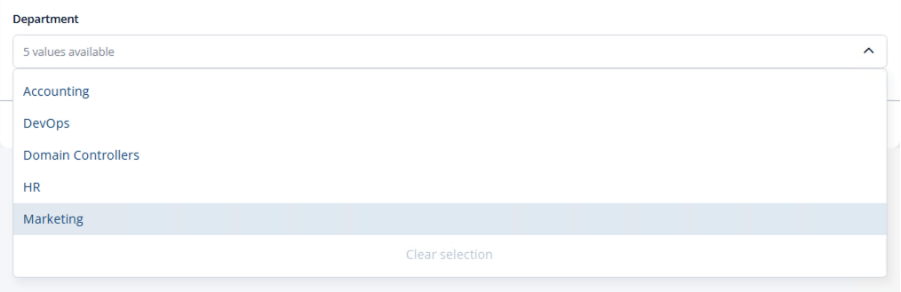
Queries can be sourced from multiple backends. You can create a Query from Active Directory or LDAP, Azure and Entra ID, a custom PowerShell script, a static list, or a file. This means dropdown values can be dynamic (for example, pulling the current list of OUs from Active Directory or the current list of Microsoft 365 license SKUs from Azure), so the options are always up to date without manual maintenance.
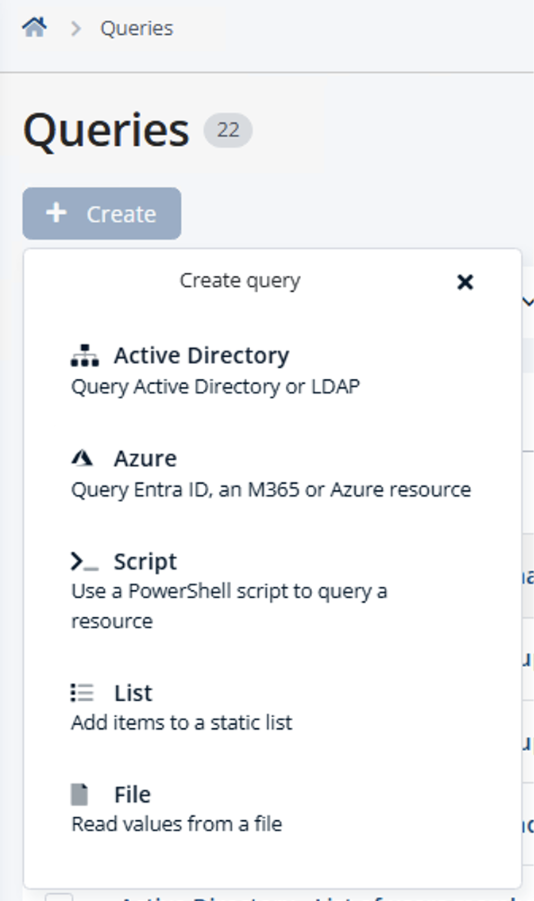
The practical effect is significant. Instead of a helpdesk operator typing a department name and hoping it matches, they select from a controlled list. Instead of an admin entering an OU path from memory, they pick from a dynamically populated dropdown that reflects what actually exists in the directory. The result is consistent, accurate data across every execution.
What the End User Sees: Guided Input, Not Raw PowerShell
For the end user running an Action, the experience is a clean, guided form. Mandatory fields are marked with an asterisk. Constrained fields show dropdowns. Invalid input is highlighted in red immediately, and execution is blocked until all fields are valid. The user never sees a PowerShell console, a regex pattern, or a validation error message.
This is what makes input validation in ScriptRunner fundamentally different from validation in a standalone script. The validation rules are the same — defined once in native PowerShell — but the enforcement surface is a graphical form that non-technical users can operate safely. The script author writes good validation once, and every user benefits from it automatically.
Key Takeaways
- ScriptRunner reads PowerShell’s native param block and automatically generates a validated form from it; no separate form builder or duplicated configuration
- Regex patterns (ValidatePattern), mandatory flags, and type constraints are enforced visually in the GUI before the script executes
- Invalid input is highlighted in red and blocks execution, bad data never reaches the script
- Queries turn free-text fields into dropdowns, sourced from Active Directory, Azure, custom scripts, static lists, or files
- Query-backed dropdowns can be dynamic, always reflecting the current state of the directory or environment
- End users see a guided form, not a PowerShell console; no technical knowledge required to run automation safely
- Validation is defined once by the script author and enforced consistently for every user across every execution
Bottom Line
Bad input is one of the most common and most preventable causes of automation failures. PowerShell already has the validation tools to stop it, but those tools only work when users interact with the script directly. ScriptRunner bridges this gap by reading your param block and generating a form that enforces your validation rules visually — before the script runs. Combined with Queries for dropdown selections, the result is a guided, error-proof input experience for every user, regardless of their technical background. Validation is defined once in the script and enforced everywhere by the platform.
To see how validated input forms can eliminate bad data in your automation, book a meeting with us.