.svg)



Introduction
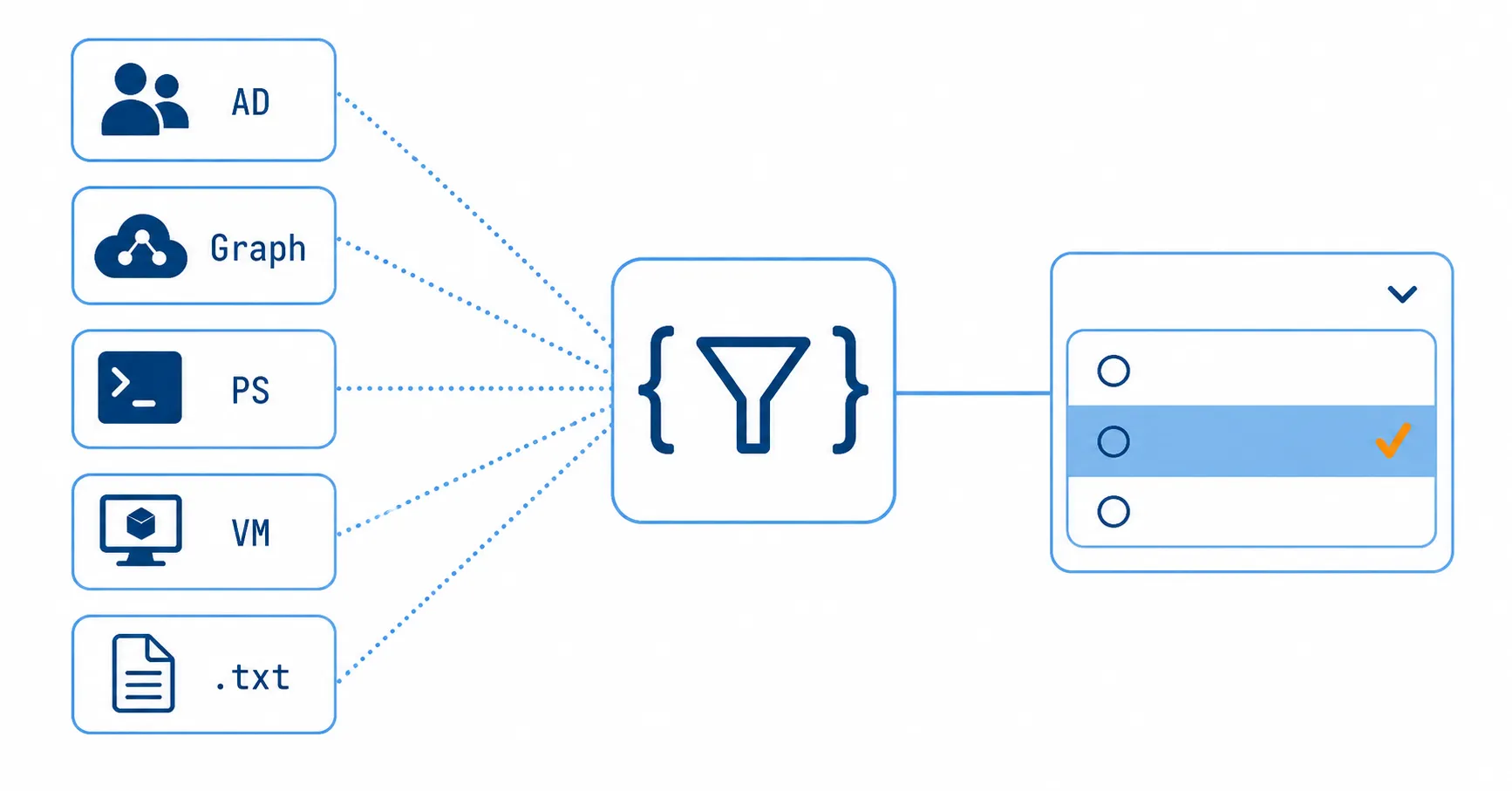
Queries are a powerful way to populate parameters in actions with the required data in a targeted manner. They support users in selecting appropriate parameter values and ensure that no invalid or unauthorized inputs are made.
Because queries can be reused across multiple actions, they help reduce development effort and minimize redundancy. ScriptRunner provides different query types, which are described in detail below.

Active Directory Queries
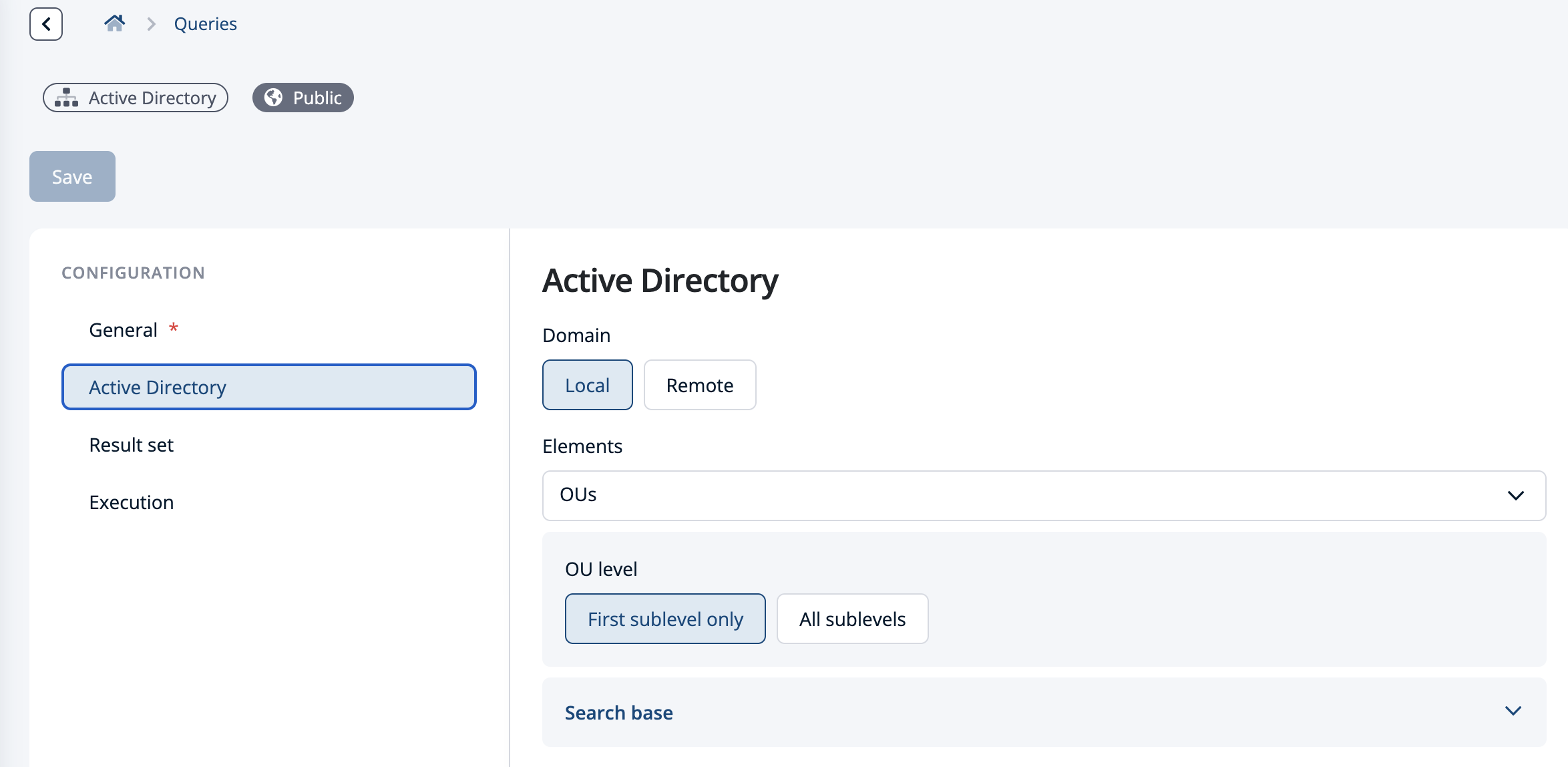
Active Directory queries return data from Active Directory (AD). Instead of using the commonly applied PowerShell module ActiveDirectory, they rely on .NET functionality. This makes them more performant than scripted queries that provide the same results.
You configure the query in the Active Directory section. Data can be retrieved from both local and remote domains. The selected object type determines the available configuration options. For example, when choosing the object type User, you can define whether active, locked, disabled, or all users should be returned.
In the Resultset section, both the parameter value and the display value are defined. A predefined selection is available depending on the chosen object type. With the Custom option, additional attributes can be configured.
When doing so, make sure that attributes are enclosed in square brackets [] and that the attribute name—not the display name—is used. For example, use SN instead of Surname.
Azure Queries

Using Azure queries requires a correctly configured Microsoft Entra Home Tenant target system. Please refer to the documentation as a guide: Configure Entra Target System
In addition to object types, queries for Microsoft Graph, Azure Resource Graph, and Azure Data Explorer can be configured in the Azure section.
As with other query types, the Resultset section defines both the parameter value and the display value. Depending on the selected object type, predefined options are available. Additional attributes can be configured using the Custom option.
Attributes must be enclosed in square brackets [].
Script Queries
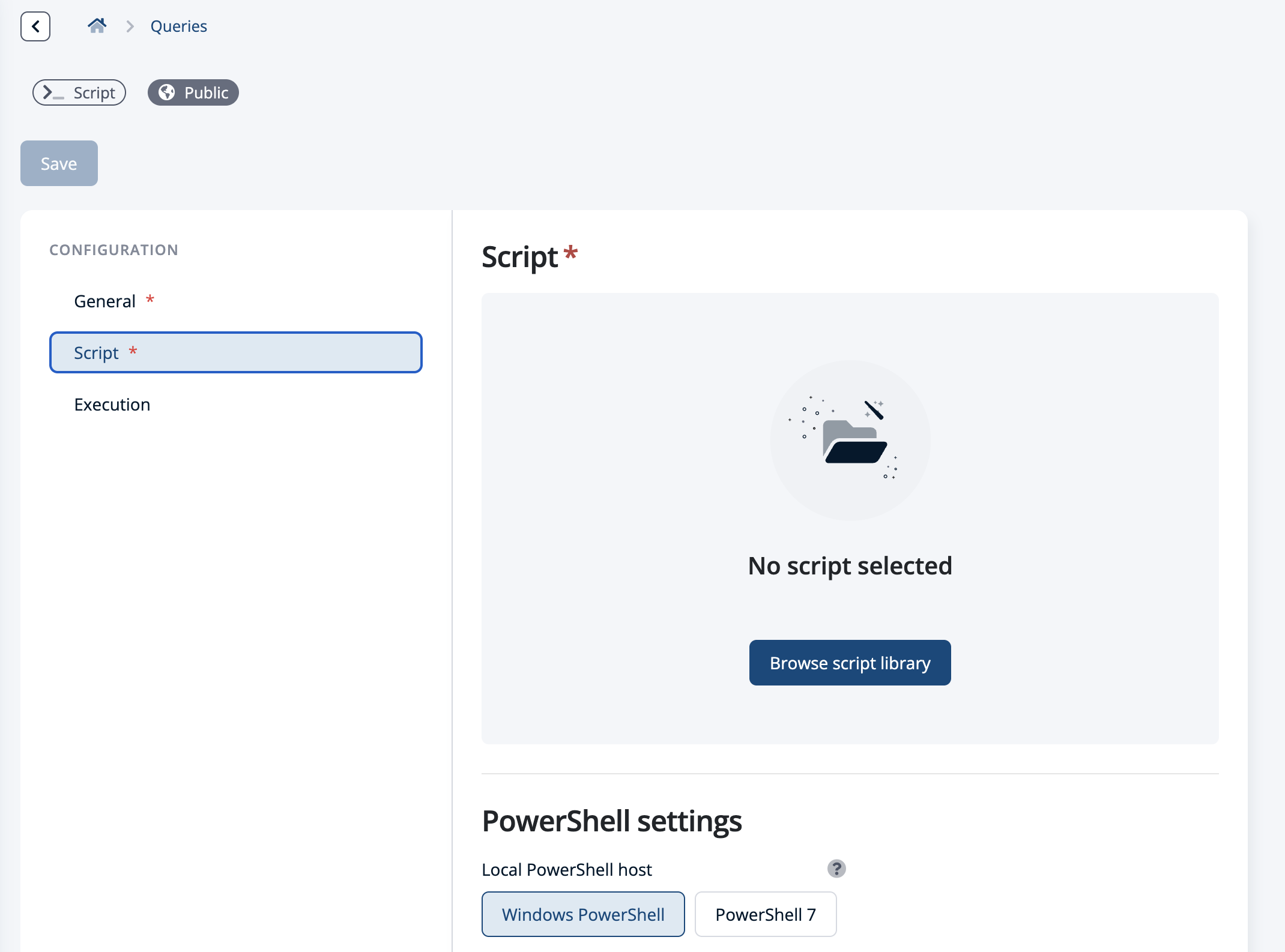
Scripted queries are the most flexible query type, as they can be freely programmed using PowerShell.
The scripts must be configured in ScriptRunner using the QUERY tag. Scripted queries populate the SRX system parameters ResultList and ResultList2:
- ResultList contains the parameter value
- ResultList2 provides the corresponding display value
Scripted queries are suitable for complex use cases that cannot be covered by Active Directory or Azure queries. They allow logic to be implemented within the query script based on the user, the system, or events, using SRX system parameters.
More information: Scripted Queries Documentation
VMware Queries

VMware queries provided by ScriptRunner use built-in functionality to retrieve information about vCenter objects that are accessible via the REST API.
To execute these queries, a correctly configured target system of type VMware REST Endpoint is required. Refer to the documentation for guidance: Configure VMware REST Endpoint
With VMware queries, different object types of the endpoint can be retrieved, for example virtual machines (VMs) or hosts. The desired object type is configured in the vCenter section.
In the Resultset section, both the parameter value and the display value are defined, depending on the selected object type.
List Queries

List queries are used for static data, such as OU paths from Active Directory.
In the List section, you configure the list by defining the parameter values and display values. All values are interpreted as the String data type.
File Queries

File queries return data from a static or dynamic file. The data is stored in a text file with the .txt extension.
In the File section, you define the file path, file name, and delimiter. Each line in the file must contain the parameter value, followed by the delimiter, and then the display value.
The file should be saved using UTF-8 with BOM encoding.
Execution and Result Configuration

With the exception of the List Query, execution can be configured for all other query types. For File Query, the only options are whether to display a search field, start execution automatically, or both. For the other query types, this option is also available unless Cached Mode has been selected.
The cached execution mode allows faster data availability. It is suitable for data where immediate currency is not required. Cache data can be updated either on a schedule (Scheduled) or based on usage (Dependent on Use). Scheduled updates occur at a defined time, while usage-based updates are triggered after an action is executed.
More information: Query Execution Modes
In real-time execution mode, the query is executed each time it is used, ensuring that the most current data is available.
The cascading execution mode enables dependent input fields. With cascading queries, user input can be narrowed down step by step. For example, instead of searching across all users, the selection can be limited to a subset within an organizational unit, a group, or based on shared attributes.
This step-by-step approach reduces incorrect input and prevents access to data outside the selected scope.
To ensure that the cascading query is executed only after all required input parameters have been selected, it is recommended that you configure in the Action script that these parameters as required parameters.
More information: Cascaded Queries
The result set can be limited by the number of results and execution time. If the number of returned results exceeds the defined limit, this is indicated accordingly in the action parameter. If the maximum runtime is exceeded, the query execution is aborted.
Values and Results
The parameter value is the value assigned to the parameter during script execution and processed within the script.
The display value is the value shown to the user for selection. For example, the parameter value of an Active Directory user can be the Distinguished Name (DN), while the user sees the Display Name.
Defining a display value is optional. If none is defined, the parameter value is used automatically. However, mixing both approaches is not supported—if display values are missing in the result list, the query result cannot be displayed.
Whether a parameter allows single or multiple selection depends on the parameter value. If the data type is an array, multi-selection is automatically enabled; otherwise, only single selection is available.
Splatting
The splatting function is used to resolve encoded JSON objects so that their content can be displayed and edited individually in the user interface.
This allows data that would otherwise require multiple queries to be retrieved through a single query. Only values of type HashTable or PSCustomObject can be resolved into attribute-value pairs.
In scripted queries, the JSON object is provided via ResultList. For Active Directory, Azure, and VMware queries, -JSON object- is selected as the parameter value in the Resultset section. The attributes to be included in the JSON object are then defined.
After resolution, the selected attributes are available as individual values for further processing and display.
To use a JSON object in action scripts, the parameter must include: [Parameter(HelpMessage="ASRDisplay(Splatting)")]
More information:
No-Code UI & ASRDisplay
Splatting Documentation
Helpful Documentation