.svg)


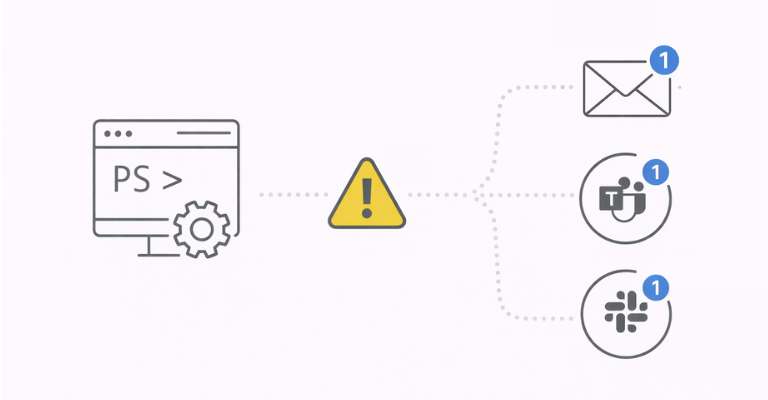

Automation is built to be invisible. The whole point is that scheduled tasks, provisioning scripts, and cleanup jobs run reliably in the background without anyone needing to watch them. But invisible also means that when something goes wrong, and nobody knows, until the consequences surface hours or days later.
ScriptRunner solves this with two approaches: built-in email notifications that require no code at all, and reusable library scripts for custom notifications to email, Microsoft Teams, Slack, and other channels. SMTP settings are configured once in a central connector, and credentials are managed in ScriptRunner’s credential store and linked to Actions. This way, secrets never end up hardcoded in individual scripts.
The Problem: Automation That Fails Silently
A scheduled script that runs successfully every night for months creates a dangerous kind of trust. Teams stop checking on it. Nobody reviews the logs. The automation becomes set-and-forget, which is exactly how it should be, right up until the moment it fails.
A credential expires and a provisioning script starts throwing authentication errors. A target server goes offline, and a cleanup job silently skips its work. A disk fills up and a report generation script fails halfway through. In each case, the failure is silent. There is no notification, no alert, no flag. The only signal is the downstream consequence: accounts that were not created, data that was not cleaned up, reports that were not delivered.
By the time someone notices, the damage has compounded. Catching a single failed execution the morning after is easy to fix. Discovering that a script has been failing for two weeks is a recovery project.
Why Hardcoding Notifications into Scripts Breaks Down
The most common workaround is to add notification logic directly into each script. At the end of the script, or in a catch block, the author adds a Send-MailMessage call with the SMTP server, sender address, and recipient list.
This works for one script. It breaks down at scale. Every script that needs notifications requires its own SMTP configuration. Credentials are stored locally, passed as parameters, or worse, hardcoded as plain text. When the mail server changes or credentials rotate, every script that sends email needs to be updated individually. If a new team member needs to receive failure alerts, someone has to find and edit every script that sends notifications.
There is also the consistency problem. Each script author implements notifications differently. Some scripts send alerts on failure only. Others send on every run. Some include useful context in the email body. Others send a generic “script failed” message with no details. There is no standard, and no central place to see which scripts notify whom, one of the many things an enterprise PowerShell automation platform provides.
Built-In Email Notifications: One Checkbox, No Code
ScriptRunner’s simplest notification option requires no scripting at all. In the Action’s configuration, under Notifications, you can enable email notifications with a single checkbox. You choose when to send: on error, on success, or always. Then you add one or more recipient email addresses.
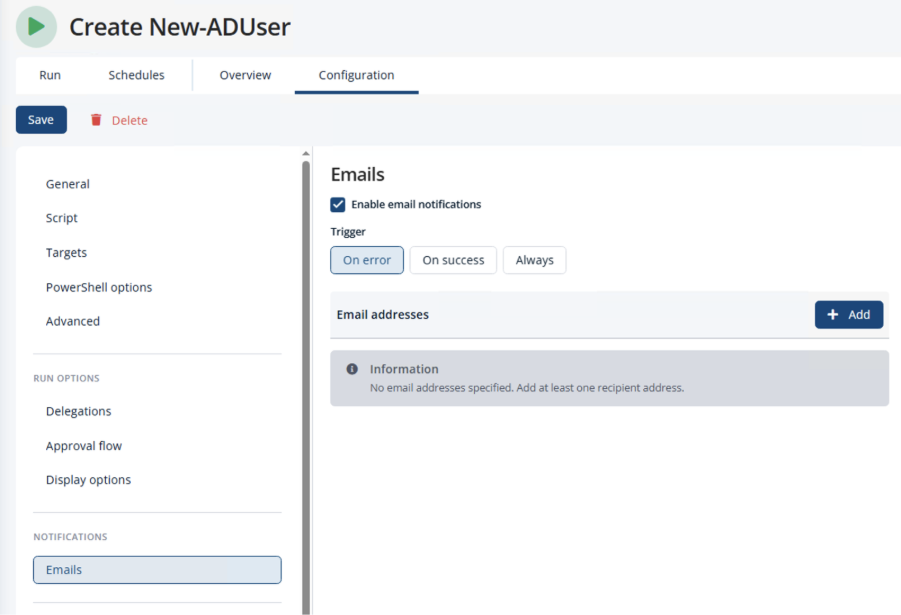
That is the entire setup. When the Action runs and matches the trigger condition, ScriptRunner sends an email automatically. There is no notification logic to write, no SMTP settings to configure in the script, and no credentials to manage at the script level. The script does its job. ScriptRunner handles the notification.
This is ideal for the most common notification need: knowing immediately when a scheduled or delegated automation fails. Instead of discovering the failure when something downstream breaks, the right people get an email the moment it happens.
Central SMTP Configuration with the Email Connector
All email notifications in ScriptRunner, both the built-in checkbox notifications and custom email scripts, use a centrally configured email connector. The connector is set up once in ScriptRunner’s Connectors section, where you define the SMTP host and port, TLS and authentication settings, and the sender email address.
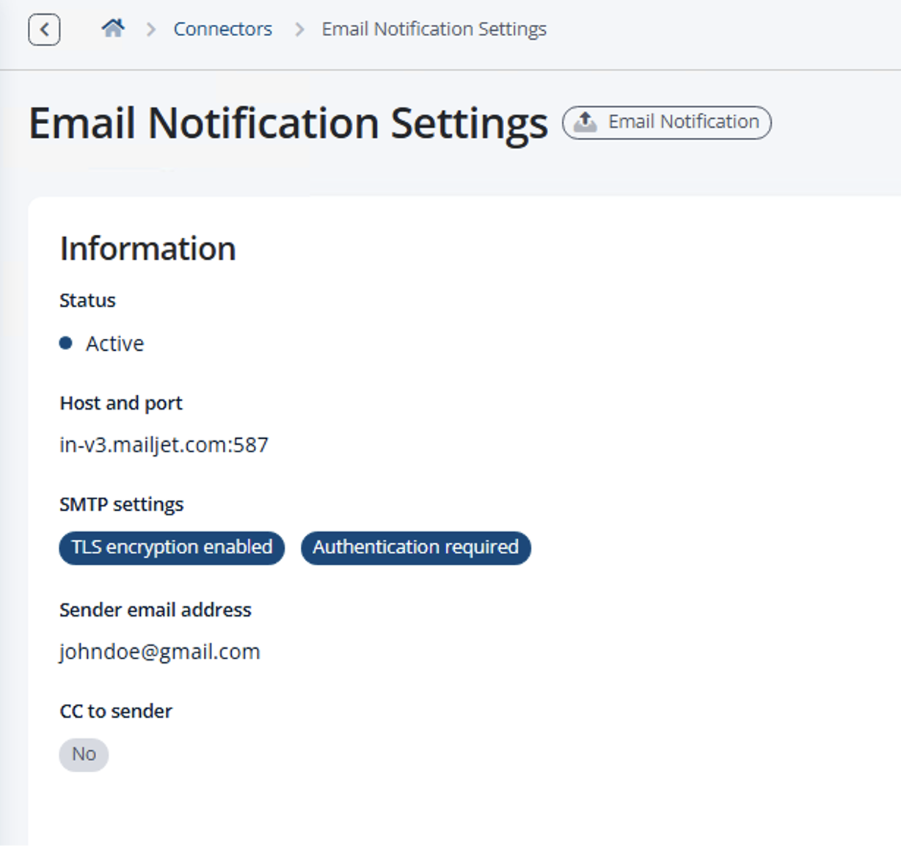
This central configuration means that SMTP settings are defined once, not duplicated across scripts. When the mail server changes or you switch providers, you update the connector and every notification, built-in or custom, continues to work. No scripts need to be edited. Credentials, meanwhile, are managed separately in ScriptRunner's credential store and linked to Actions individually, so password rotation is handled independently without touching the connector or any scripts.
Custom Notifications with ScriptRunner Library Scripts
The built-in notification checkbox covers standard use cases: alert on failure, confirm on success. But some scenarios require more control. You may want to include specific data in the email body, send to different recipients based on the result, attach a generated report, or notify a Teams channel instead of an email inbox.
For these cases, ScriptRunner provides ready-made communication functions in its Action Packs: a library of over 2,000 pre-built scripts available on GitHub. The Communication Action Pack includes reusable functions for sending email, posting to Microsoft Teams channels, sending Slack messages, and more.
To use them, you write a short script that calls the library function with your specific parameters. For example, a script that sends a custom email using the SRSendMail function might look like this:
param(
[PSCredential]$MailServerCredential
)
$MailSender = 'automation@company.com'
$MailRecipients = 'ops-team@company.com'
$MailSubject = 'User Provisioning Report'
$MailBody = 'Daily provisioning completed successfully.'
$MailServer = 'smtp.company.com'
SRSendMail `
-MailSender $MailSender `
-MailRecipients $MailRecipients `
-MailSubject $MailSubject `
-MailBody $MailBody `
-MailServer $MailServer `
-MailServerCredential $MailServerCredential `
-MailUseSsl $true `
-HtmlBody $false
The script itself is clean and focused on what to send. The SRSendMail function that is provided by the library script handles the actual sending logic, error handling, and SMTP mechanics. Notice that the script only declares a PSCredential parameter: it does not contain the actual credentials anywhere.
Credentials from the Credential Store, Not from the Script
When you create the Action from this script, ScriptRunner detects the PSCredential parameter and presents it as a credential selector in the Action’s configuration. You click “Select credential” and choose from ScriptRunner’s central credential store, for example, “Mailjet_credentials”, which is where the actual username and password are managed.
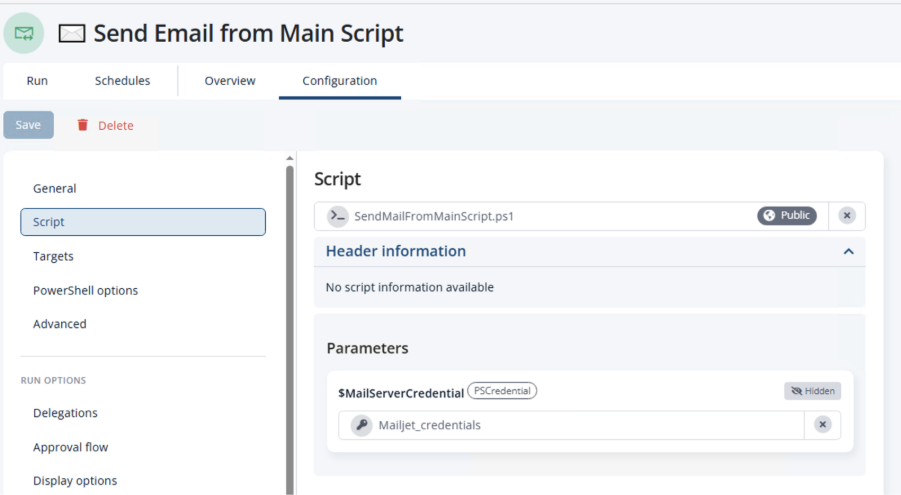
The credential is linked to the Action, not embedded in the script. When a password rotates, you update it once in the credential store, and every Action that references it continues to work. No scripts need to be edited. No hardcoded values need to be found and replaced. The parameter is also marked as “Hidden,” meaning end users who run the Action never see or interact with the credential at all.
How Library Preloading Works
To make a library function available to your script, you add it as a preloaded library script in the Action’s PowerShell options. When creating the Action, you go to Configuration, select PowerShell Options, and add the library script (for example, Send-SRMail.ps1) under “Library scripts to preload.”
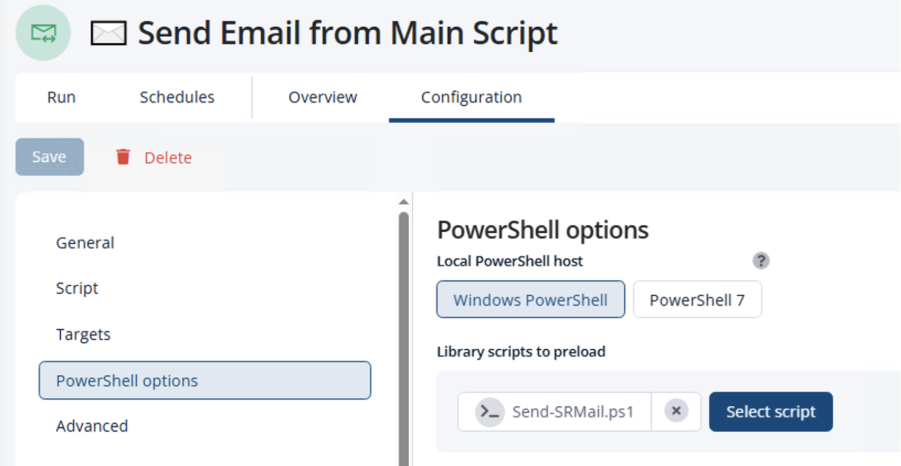
ScriptRunner loads the library before executing your main script, making all its functions available. The library scripts themselves come from the ScriptRunner Action Packs, which you can browse and import directly in the Scripts section.
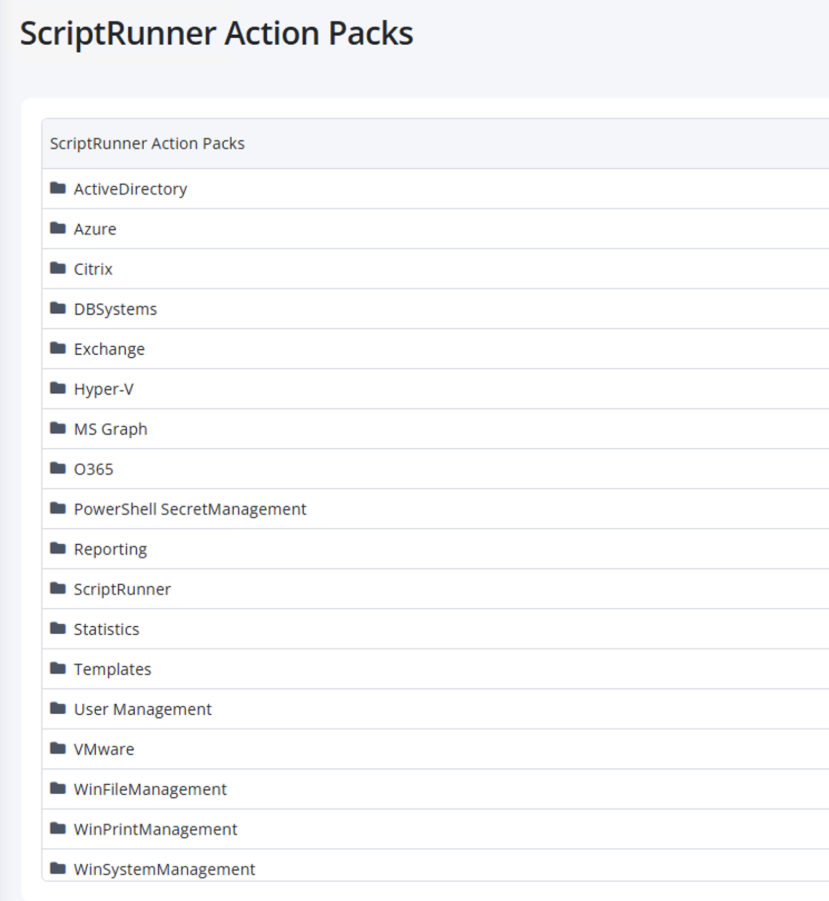
This preloading pattern means you never duplicate notification logic. The same library script is reused across every Action that needs it. If the library function is updated, for example, to support a new authentication method, every Action that preloads it benefits immediately.
Beyond Email: Teams, Slack, and More
The Communication Action Pack is not limited to email. It includes ready-made functions for posting messages to Microsoft Teams channels via incoming webhooks, sending messages to Slack channels, and posting to Yammer communities. The pattern is the same: preload the library script, call the function from your main script, and let ScriptRunner manage the credentials.
For Teams, for example, you call SRXPostToTeamsChannel with a webhook URL and a message. You can optionally set a title, message color (green for success, red for failure), and activity details. This lets you build automation that reports its own results into the channels where your team already works, without writing webhook integration code from scratch.
Key Takeaways
- Built-in email notifications require no code: enable a checkbox, choose a trigger (on error, on success, always), and add recipients
- SMTP settings are configured once centrally in the email connector, no hardcoded mail server details in scripts
- Credentials are managed in ScriptRunner’s central credential store and linked to Actions, when a password rotates, update it once and every Action keeps working
- For custom notifications, ScriptRunner provides ready-made library functions for email, Teams, Slack, and Yammer
- Library scripts are preloaded in the Action’s PowerShell options and reused across any number of Actions
- Over 2,000 pre-built scripts are available in ScriptRunner Action Packs on GitHub, including the Communication pack
- The result: set-and-forget automation that still alerts the right people the moment something goes wrong
Bottom Line
Automation should be invisible when it works and loud when it fails. Without notifications, failures go unnoticed until the consequences surface, and by then, a simple fix has turned into a recovery project. ScriptRunner gives you two paths to solve this: a built-in, no-code notification option for standard alerts, and reusable library scripts for custom notifications to email, Teams, Slack, and beyond. SMTP settings are configured once in the email connector, credentials live in ScriptRunner’s central credential store and are linked to Actions, never hardcoded in scripts. The result is automation you can truly set and forget, because when something does go wrong, you will know immediately.
To see how ScriptRunner’s notification capabilities can keep your automation visible, book a meeting with us.