.svg)


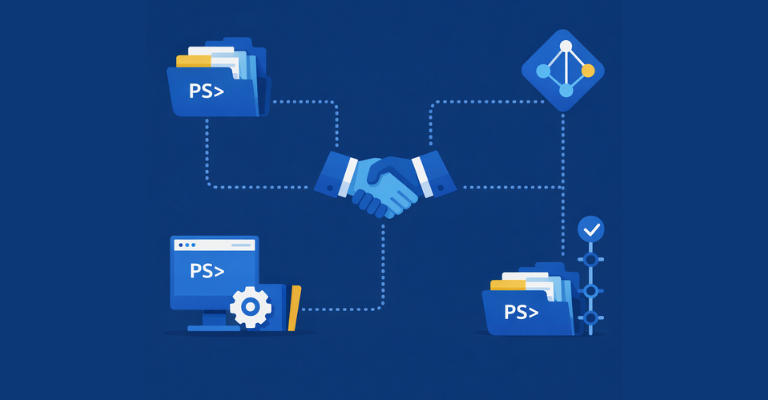

In software development, version control was settled decades ago. Every developer uses Git. Every codebase lives in a repository. Every change is tracked. But in system administration, PowerShell scripts, which are just as critical to production, still live on file shares, get emailed between colleagues, and carry version hints in their file names. The tools to fix this already exist. System administrators just have not adopted them yet.
Every Developer Uses Git. Why Don’t Scripters?
No professional developer emails source files to a colleague, saves versions as ProjectCode_v3_final.zip, or wonders which copy of a file is the current one. Yet in IT operations, this is exactly how PowerShell scripts are still managed. Scripts sit on shared folders. Backups are manual copies. Collaboration means telling your colleague “don’t touch that file, I’m working on it.” This is not because Git is too complicated. It is because most system administrators have simply never had a reason to learn it. That reason now exists: automation scripts are production code, and they deserve the same controls.
What Git Actually Is
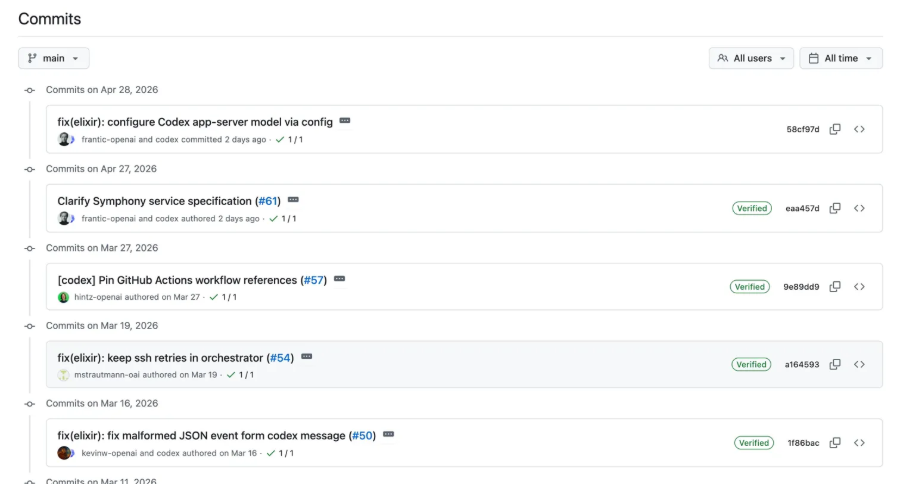
Git is a version control system. It tracks every change you make to a file, records who made the change and when, and lets you go back to any previous version at any time. Your files live in a repository, a folder that Git watches. Every time you save a meaningful change, you create a commit: a snapshot of all your files at that moment, with a short message describing what you changed. Repositories can be local or remote (hosted on GitHub, GitLab, Azure DevOps, or a self-hosted server), allowing multiple people to work on the same scripts and stay synchronized.
What This Looks Like in Practice
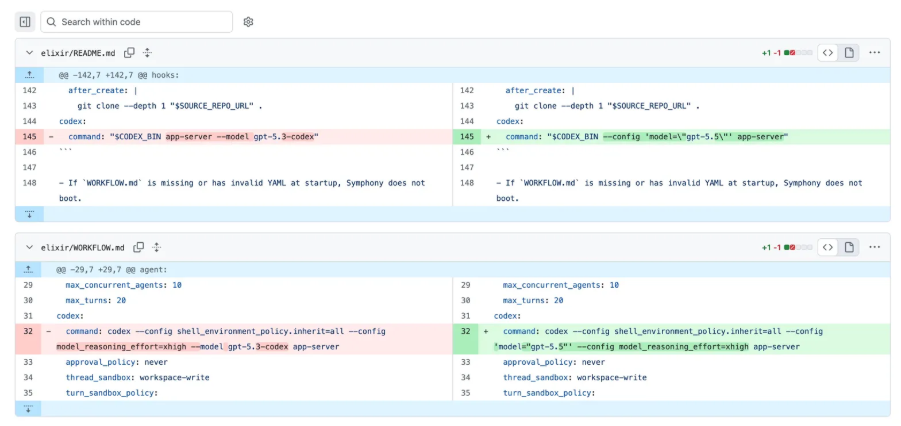
Sharing code with a colleague: without Git, you email the .ps1 file or point them to a shared folder. They edit it and send it back. Now you have two versions, and if you both made changes, one overwrites the other. With Git, the script lives in a shared repository. Your colleague clones it, makes changes, and commits. You pull the latest version and see exactly what changed. If you both edited the same lines, Git flags the conflict instead of silently overwriting.
Something breaks after a change: without Git, you hope you saved a backup copy, or you rewrite from memory. With Git, you look at the commit history, see exactly which lines changed, and revert to the previous version in seconds.
Proving what changed and when: without Git, an auditor’s question depends on tribal knowledge and file timestamps. With Git, every commit records the author, the timestamp, and the exact lines that were modified. The history is immutable and goes back to the very first commit. Combined with controls like built-in approval workflows, this creates a full governance chain from change authorization to execution. (See also: Approval Workflows in ScriptRunner.)
You Do Not Need the Command Line
The biggest misconception about Git is that it requires a terminal and memorized commands. Visual tools like VS Code, GitHub Desktop, and GitKraken provide a full graphical interface for cloning, viewing changes, committing, and pushing. You see your changes highlighted, write a commit message, and click a button. No commands required.
ScriptRunner and Git: Connect Your Repository and Forget About Git Commands
If you use ScriptRunner, the barrier is even lower. ScriptRunner integrates directly with Git repositories: GitHub, GitLab, Azure DevOps, or self-hosted. You add your repository as a script source, and ScriptRunner synchronizes your scripts into the platform. From there, the full commit history is visible in ScriptRunner’s own interface: who changed what, when, and why. If a change causes problems, you roll back with a single click. No Git commands, no terminal, no branching strategies to learn upfront.
For teams that want the full workflow, e. g. branches, pull requests, code reviews, it is all available through the repository. But for day-to-day script management, ScriptRunner gives you the benefits of version control through a GUI that any administrator can use immediately. For a deeper look at how this works in practice, see our article on Version Controlling Scripts with Git in ScriptRunner.
Key Takeaways
- Git is the standard for version control; automation scripts deserve the same discipline as application code
- Every change is tracked with full history: who changed what, when, and why
- Rollback to any previous version is instant, no backup copies needed
- Git does not require the command line, as VS Code, GitHub Desktop, and ScriptRunner all provide a visual interface
- ScriptRunner connects to any Git repository and surfaces commit history, diffs, and one-click rollback in its own GUI
Bottom Line
Software developers settled version control long ago. System administrators managing PowerShell scripts face the same challenges, such as shared files, overwritten changes, no audit trail, but most have not yet adopted the tool that solves them. Git is that tool, it is more accessible than its reputation suggests, and if you use ScriptRunner, you may not need to interact with Git directly at all.
To see how ScriptRunner’s Git integration brings version control to your automation, book a meeting with us.