




A question comes up in almost every conversation about ScriptRunner's Git integration: once the repository is connected, where do I actually edit my scripts? In ScriptRunner, in my IDE, or in Git itself, and does everything stay in sync? The short answer is yes. Git becomes the single source of truth, ScriptRunner keeps it synchronized in both directions, and every person on the team can work the way that suits them, without anyone having to open a terminal.
The Problem: Three Copies of the Same Script
In most environments without a central automation platform, a single script quietly exists in several places. The author writes it in VS Code on a laptop and copies it to the server where it is scheduled. During an incident, a colleague logs into that server and hotfixes the file directly. If a Git repository exists at all, it holds a third version that matches neither of the others.
Nobody can say with certainty which copy is the one that runs. When the original author changes teams or leaves the company, the laptop copy goes with them, the server copy has drifted, and the repository is out of date. What is left is a FrankenScript: production automation that still runs every night, but that nobody fully understands or owns. This is the classic DIY trap: no central control, knowledge locked in individual heads, and nobody responsible for maintenance.
Why "Just Put It in Git" Is Not Enough on Its Own
Moving scripts into a repository is the right first step, but on its own it creates a two-system problem. Git holds the code, while the server runs whatever was last copied onto it. Someone still has to pull changes onto the server, and any fix made directly there bypasses Git, so the drift starts again.
Even teams that already use Git consistently carry a lot of overhead that has nothing to do with the scripts themselves:
- Scripts end up spread across several repositories, and someone has to keep a list of which repo holds which scripts
- Every new colleague needs access granted to each relevant repository, and every leaver needs it revoked again
- Every administrator needs a local clone, a Git client, and the skills to use them correctly
- The repository shows what was committed, but not what actually ran, where, or with which credentials
There is also a people problem. Not everyone who maintains scripts is comfortable with branches, commits, and pushes. When the only sanctioned path into production requires Git skills, the team members who lack them tend to work around it, which brings back exactly the shadow copies the repository was meant to eliminate.
How ScriptRunner Keeps Git as the Single Source of Truth
In ScriptRunner, you connect a Git repository as a remote script source. GitHub, GitLab, Azure DevOps, Bitbucket, and self-hosted Git servers are all supported. Every script in that source lives in a Git-managed folder on the ScriptRunner node, and every change, wherever it is made, is synchronized through the central repository. All connected ScriptRunner nodes stay up to date automatically.
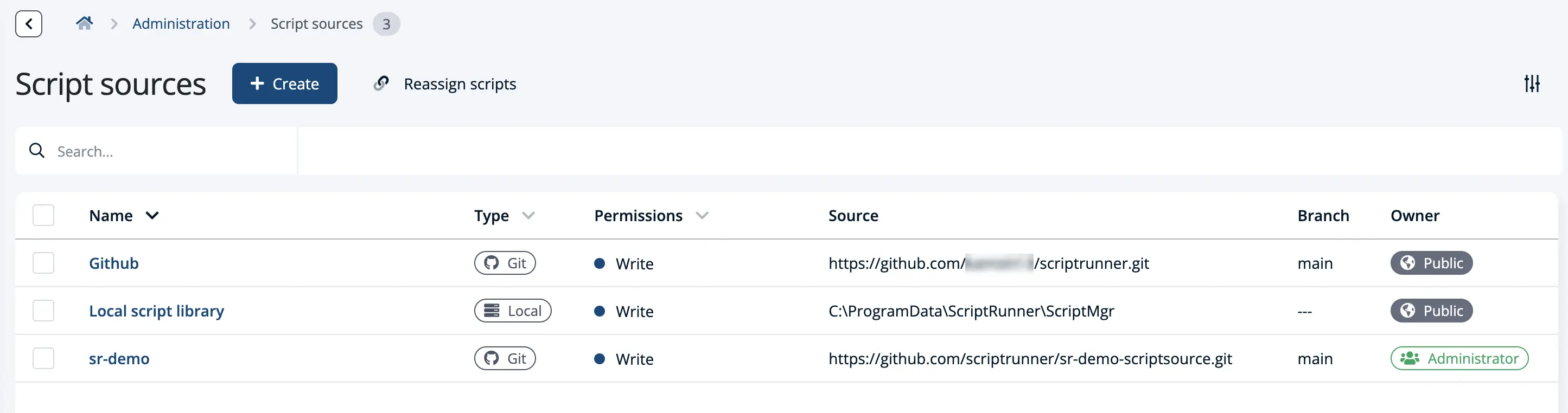
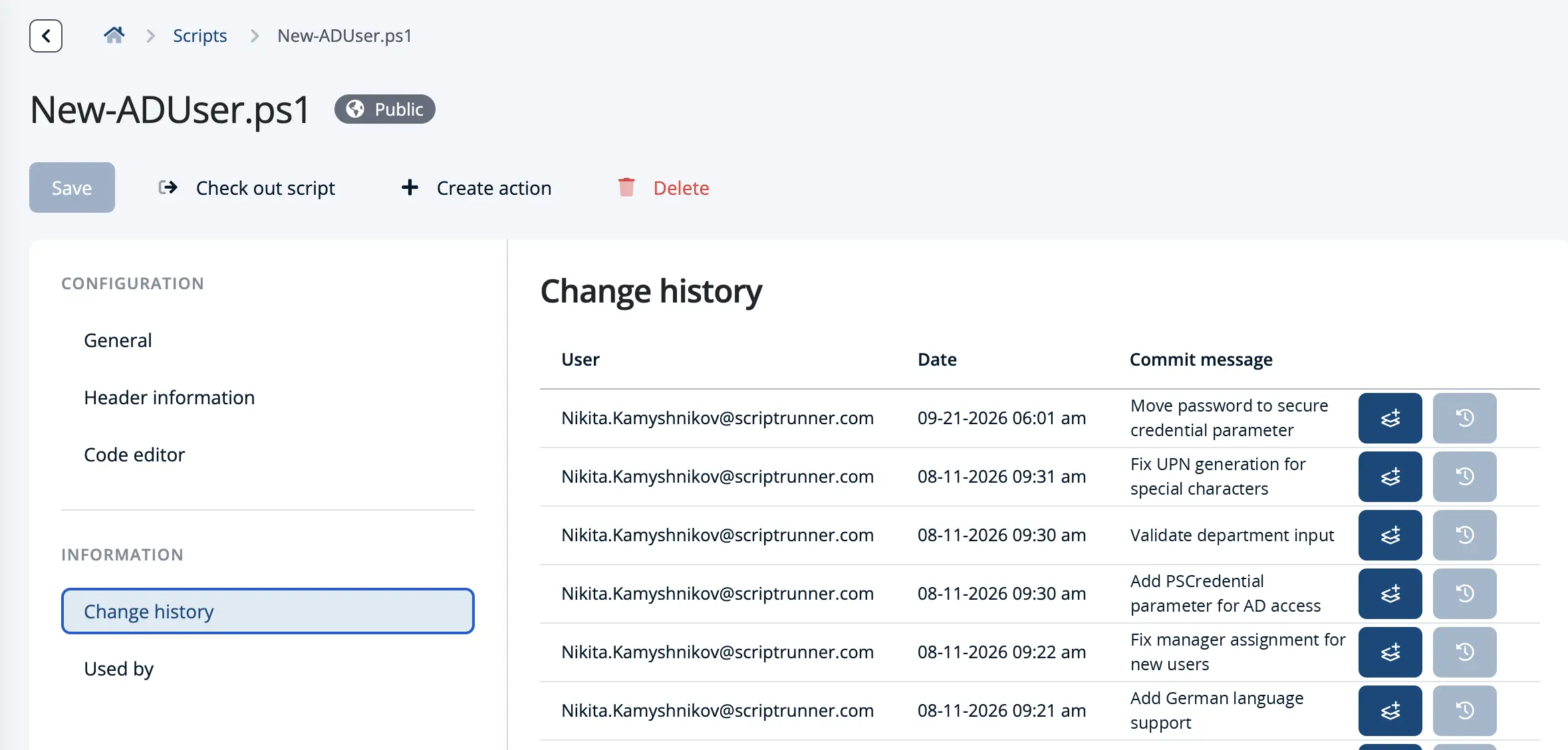
Because the sync runs in both directions, Git always reflects the current state, and you never have to visit it to keep things consistent. Commit history, diffs, and one-click rollback are available directly in the ScriptRunner interface, as described in Version Controlling Automation Scripts: Why Git Alone Is Not Enough.
Creating New Scripts: Two Ways In
Write in your IDE and push. Developers who already work in VS Code or another editor create the script locally, commit it, and push it to the configured branch. ScriptRunner picks it up from the repository, and it is immediately available to build an Action on.
Upload or create directly in ScriptRunner. Administrators who do not use Git can upload an existing .ps1 file or create a new script in the ScriptRunner Portal. ScriptRunner commits it to the repository on their behalf, so the new script lands in Git just like a pushed one.
Editing Existing Scripts: Portal or IDE
Quick fixes in the Portal. For a small change, such as adjusting a parameter default or fixing a typo in an output message, you open the script in ScriptRunner's built-in editor and save. The change is committed and synchronized to the repository. No local clone, no Git client, no command line.
Larger changes in your IDE. For bigger work, developers keep their usual workflow: pull the repository, create a branch, edit in VS Code, open a pull request, and merge after review. Once the change reaches the configured branch, ScriptRunner synchronizes it. The ScriptRunner Enterprise extension for VS Code also lets developers work on ScriptRunner-managed scripts directly from their editor.
Both paths write to the same repository, so a Portal fix and an IDE change never compete as separate copies. If your team is new to these concepts, Git 101 for System Administrators covers the basics.
Optional: Make Git the Only Way In
Some organizations want every change to go through a pull request with a mandatory review. ScriptRunner supports this as well: script development can be restricted so that changes are made exclusively in the external Git repository. Nothing then reaches production without passing your review process. This is a strong fit for regulated environments where change control has to be provable.
Which Way Should Your Team Work?
A common setup: administrators make small fixes in the Portal, scripters develop larger features in their IDE with branches and pull requests, and the most sensitive script sources are locked to Git-only. Mixed teams work fine, because every path ends in the same repository.
Key Benefits
One version, everywhere. There is no gap between what is in the repository and what runs. The FrankenScript problem of drifting copies disappears.
No Git skills required. Administrators get version control, history, and rollback through the ScriptRunner interface, without learning Git commands.
Ownership survives staff changes. Every script and every change is in a central, documented location, so knowledge does not leave with the person who wrote the code.
Key Takeaways
- A Git repository connected as a remote script source becomes the single source of truth for your scripts
- Synchronization works in both directions, so changes made in ScriptRunner, in your IDE, or in Git all end up in the same repository
- New scripts can be pushed from an IDE or uploaded and created directly in ScriptRunner
- Existing scripts can be edited in the Portal for quick fixes or in an IDE for larger, reviewed changes
- Commit history and one-click rollback are available in ScriptRunner, so you never need to open Git directly
- For strict change control, development can be restricted to the external Git repository only
Bottom Line
DIY script management leaves you with several copies of the same code and no certainty about which one runs. ScriptRunner removes that ambiguity: Git holds the truth, ScriptRunner keeps it synchronized, and each team member can create and edit scripts in the Portal, in their IDE, or in Git itself. Whichever way they choose, the script ends up in one place, with one history.
To see how ScriptRunner's Git integration fits your team's way of working, book a meeting with us.