.svg)



Most IT automation starts with a single script: create a user, reset a password, clean up a folder. But real IT processes rarely consist of one step. They involve requests, approvals, several systems and someone who needs to know the result. This is where workflows come in. A workflow connects the individual steps of a process - from the moment a request comes in to the moment it is completed - into one automated, traceable flow. In this article, we take a look at how a typical automated IT workflow is structured, and how ScriptRunner's Workflow Engine helps you build one.
The Ticket Is Automated, the Work Is Not
Take a typical access request. The ticket lands in a queue. A helpdesk colleague finds out who is responsible for the requested resource - for example, the head of Finance for the Finance file share - emails them for approval and waits. Eventually someone opens a PowerShell console, adds the user to an AD group, then logs on to the Microsoft 365 admin center to add them to the right Teams team, and finally updates the ticket by hand.
Every step is a weak point. Approvals get stuck in inboxes. The script lives on one admin's laptop and runs with that admin's personal permissions. And when an auditor asks who approved the change, and whether what ran matches what was approved, the answer has to be pieced together from emails and memory.
Why Scripts and Ticket Rules Alone Don't Close the Gap
Many teams automate pieces of this: a ticket rule here, a PowerShell script there. That helps, but the steps stay disconnected. The ticket rule doesn't know what the script did, and the script doesn't know whether anyone approved it. You end up with automated islands inside a manual process: no central control, no consistent error handling, and process knowledge that sits with one or two people.
The Four Steps of an Automated IT Workflow
Whatever process you automate, almost every IT workflow follows the same structure: something starts it, someone approves it, something gets done, and everything is documented. Let's take a look at each of these steps - what it means, which options you have, and how it works in a concrete example: an access request submitted through Jira and completed with ScriptRunner's Workflow Engine.
Step 1: Trigger - What Starts the Workflow?
Every workflow needs a starting point: the event that tells it "go". The Workflow Engine offers several options:
- Webhook: any system starts the workflow with an API call
- Manual start: an administrator or helpdesk user starts it directly from ScriptRunner's interface
- Schedule: the workflow runs at fixed times, for example every night
- Incoming email or chat message: a message in a mailbox or channel starts the process
- Ticket system event: a new or updated ticket in Jira, ServiceNow or Zendesk
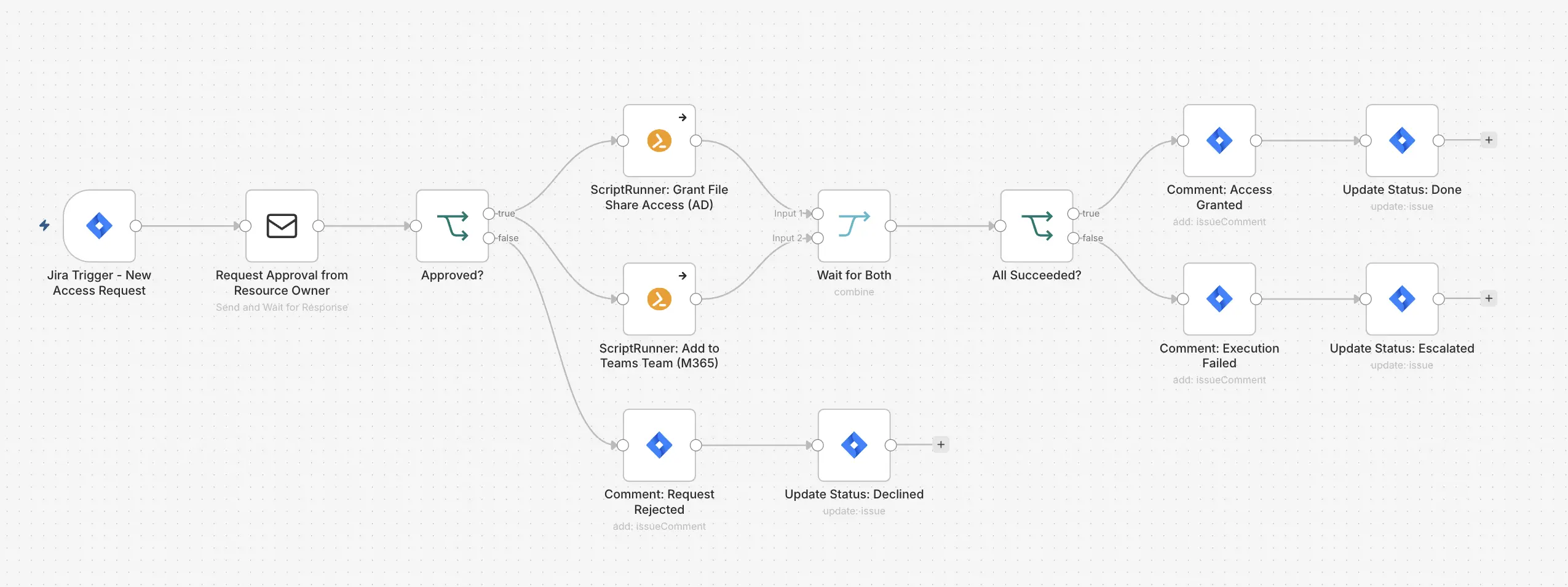
In our example: the workflow starts automatically when a new Jira ticket of the type "Access Request" is created - here, an employee asking for access to the Finance team's resources. The ticket already contains everything the workflow needs: who is asking and why. Users keep requesting access the way they always have, so no new portal is needed.
Step 2: Approve - Who Has to Say Yes?
Not every task needs approval, but changes to access, security or production systems usually do. In this step, the workflow pauses and waits for a human decision. Your options:
- No approval: for low-risk tasks like generating a report
- Email or chat approval: an email, Teams or Slack message with Approve and Reject options
- Approval in the ticket system: the workflow continues only once the ticket is approved there
- Approval on the ScriptRunner Action: a technical gate on the Action itself (see Built-In Approval Workflows in ScriptRunner)
In our example: the person responsible for the resource receives an email with Approve and Reject options. It shows exactly what the system is about to do: which ScriptRunner Actions will run, on which systems, and the scripts themselves. The approver signs off on the concrete change, not a vague description. If they reject or don't respond within 48 hours, the workflow comments on the ticket and closes it as declined.
Step 3: Execute - What Actually Gets Done?
This is where the real work happens. You can execute steps in different ways:
- ScriptRunner Actions: run your PowerShell scripts centrally, with secure credentials and every run logged
- Ready-made connectors: work with common tools like Jira, Microsoft 365 or email without writing code
- API calls: connect to any other system that has an API
In our example: access to Finance means two things in two different systems: membership in the AD group for the Finance file share, and membership in the Finance team in Microsoft Teams. The workflow runs two ScriptRunner Actions at the same time - one for Active Directory, one for Microsoft 365 - and waits until both are finished before it continues. The workflow decides when something runs; ScriptRunner controls how it runs. Credentials come from ScriptRunner's credential store, and neither the requester nor the approver ever sees them. Each script stays short and does one job:
# Action 1: Grant-ADGroupAccess (Active Directory)Add-ADGroupMember -Identity $GroupName -Members $UserPrincipalName

# Action 2: Add-TeamMember (Microsoft 365)$team = Get-Team -DisplayName $TeamNameAdd-TeamUser -GroupId $team.GroupId -User $UserPrincipalName
Small, single-purpose Actions like these can be reused in other workflows - the same AD Action works for onboarding, project access or role changes.
Step 4: Audit - What Happened, and Who Needs to Know?
A workflow isn't finished when the script ends. Two things still need to happen: the people involved need to know the result, and there needs to be a record of what happened. Options include:
- Update the ticket: add a comment and change its status
- Notify people: send an email or a Teams or Slack message
- Keep a record: use the execution history and run reports, or update other systems like a CMDB
In our example: the workflow adds a comment to the Jira ticket with the result - file share and Teams access granted, who approved it, and when - and moves it to "Done". If either Action fails, the workflow comments the error and escalates the ticket to IT Operations, so no request gets stuck. Together with the Workflow Engine's execution history and ScriptRunner's run reports, this gives you a complete audit trail: who asked, who approved, what ran, and what the result was (see Audit in ScriptRunner: Making Enterprise Automation Traceable and Defensible).
One Pattern, Many Use Cases: Software Installation
The same four steps work for almost any request. For a software installation, a "Software Request" ticket is the trigger, the license manager approves, a different ScriptRunner Action deploys the package, and the audit step stays the same. New use cases mostly mean new Actions, not a new architecture.
Key Benefits
Central control. Every request follows the same governed path, visible on a single canvas.
Compliance by design. Approvals are part of the process, credentials never leave ScriptRunner, and every step is logged.
Productivity. Requests that took days of back-and-forth are done in minutes.
Knowledge that stays. The workflow documents the process, so it no longer depends on one admin who knows which script to run.
Key Takeaways
- Every automated IT workflow has four steps: Trigger, Approve, Execute and Audit
- Triggers can be webhooks, manual starts, schedules, messages or ticket events
- Approvers see exactly what will run before they say yes
- ScriptRunner Actions handle execution with central scripts and managed credentials
- One workflow can run several Actions across different systems, in parallel, and only continue when all of them succeed
- The audit step updates the ticket and records every request, approval and result automatically
- The same pattern scales from access requests to software installation and beyond
Bottom Line
Automating a ticket is easy. Automating the work behind it - with approvals, secure execution and a full record of what happened - is what turns a ticket queue into a real service. ScriptRunner's Workflow Engine connects all four steps in one governed process: fast, approved and auditable.
To see how the Workflow Engine can automate your ticket-driven processes end to end, book a meeting with us.