.svg)




Introduction
The offboarding action that has been running every afternoon for eight months suddenly fails at 4:12 p.m. with an access denied error, and the change log for the week is empty. The service desk wants to know whether the user was disabled, and you want to know what changed. Troubleshooting automation is rarely about the error message itself. It is about comparing a run that worked with one that did not, under the same conditions, without guessing.
The Scheduled Task Nobody Could Reproduce
Before we moved it into ScriptRunner, that same offboarding script lived on a utility server as a scheduled task, running under a service account created by a colleague who has since left. The only sign of trouble was a last run result of 0x1 in Task Scheduler, plus a transcript whenever somebody remembered Start-Transcript. The usual response was to log on, open a console as yourself, and run the script by hand. It worked because your account had different rights, a different profile and different modules loaded than the service account.
What changed between the last good run and the bad one was anyone’s guess. The script had been edited in place twice that quarter, with no record of who changed what or why. The person who understood its quirks was the only real documentation, and he had moved to another company.
Transcripts, Event Logs and the Limits of Rerunning by Hand
The native tools have their place: Start-Transcript captures a great deal, the event log records logon failures for the service account, and Task Scheduler reliably starts a process on time. The trouble is that each answers a narrow question in a different place, and none preserves the context of the run that worked.
Rerunning interactively is the worst habit of all, because it changes the one variable you most need to hold steady: the security context. Shared folders of date-suffixed script copies and a wiki page of known issues try to fill the gap, but drift out of date the moment someone edits the live copy. Across dozens of jobs owned by several teams, every failure becomes an archaeology project only one or two people can lead.
One Place for the Script, the Context and the Evidence
In ScriptRunner, an action ties the script to its targets, and the target defines the credential the script runs with, so the execution context becomes configuration rather than tribal knowledge. Whether a schedule, an admin or a delegated service desk role starts the action, the ScriptRunner service executes it and keeps a report. Each report records status, target, parameter values, who started the run and the full console output. Troubleshooting stops being reconstruction and becomes comparison.
Working the Problem from Report to Service Log
Start by comparing the failed run with the last good one in the reports list. The diff viewer highlights differences in the console output and shows the execution details of both runs side by side, which usually narrows things to a parameter that arrived empty or a warning that had been appearing for a week. If the differences point at the code, the script’s change history compares it with the previous version and highlights exactly which lines changed.
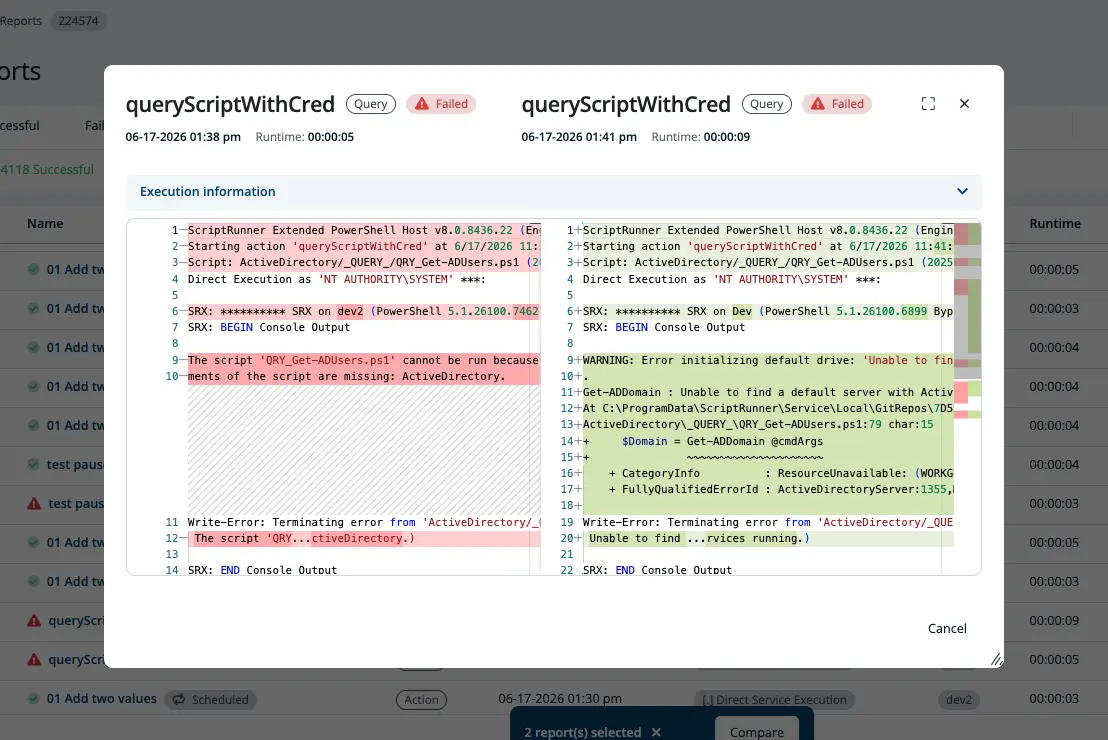
When neither comparison is conclusive, the script has to tell you more. Write-Verbose statements at decision points, such as which OU was searched or which mailbox was found, cost nothing during normal runs. Select Verbose report on the action’s Run tab for a debugging run, and you get a trace from the exact context that failed rather than from your console. For scheduled runs, the Verbose option sits in the action’s PowerShell settings; switch it off afterwards so routine reports stay readable.
For actions running on the ScriptRunner host itself, check the execution context. With a user selected in the target settings, ScriptRunner runs local scripts either as an Impersonated Thread or as a Simple Run-As Process. Under Impersonated Thread, native PowerShell code runs as the selected user, but an EXE, COM object or binary DLL may fall out of impersonation and run as the service account, which is how a newly added vendor tool call produces an access denied that looks impossible. Simple Run-As Process starts a separate process under the user’s token, at the price of granting the service account Replace a process level token and the user Log on as a batch job.
Read more about Local Execution Modes: https://www.scriptrunner.com/blog-admin-architect/choosing-the-right-local-execution-mode-in-scriptrunner-impersonated-thread-vs-simple-run-as-process
Scripts that need a full user environment, such as profiles or user-scoped modules, can use loopback remoting instead, a WinRM session back to the same server. It brings the usual remoting rules, second hop included, but switching modes is a legitimate diagnostic step when a script works in a console and fails under automation.
Read more about Loopback Remoting: https://www.scriptrunner.com/blog-admin-architect/run-powershell-scripts-reliably-with-loopback-remoting
Sometimes the problem is not the script at all. If an action never starts or no report appears, the ScriptRunner service logs in C:\ProgramData\ScriptRunner\Service\Local\Log are the place to look. Workflows keep their own logs under C:\ProgramData\ScriptRunner\workflow\log, and installation problems with the Workflow Engine are recorded in C:\ProgramData\ScriptRunner\workflow\installLog.
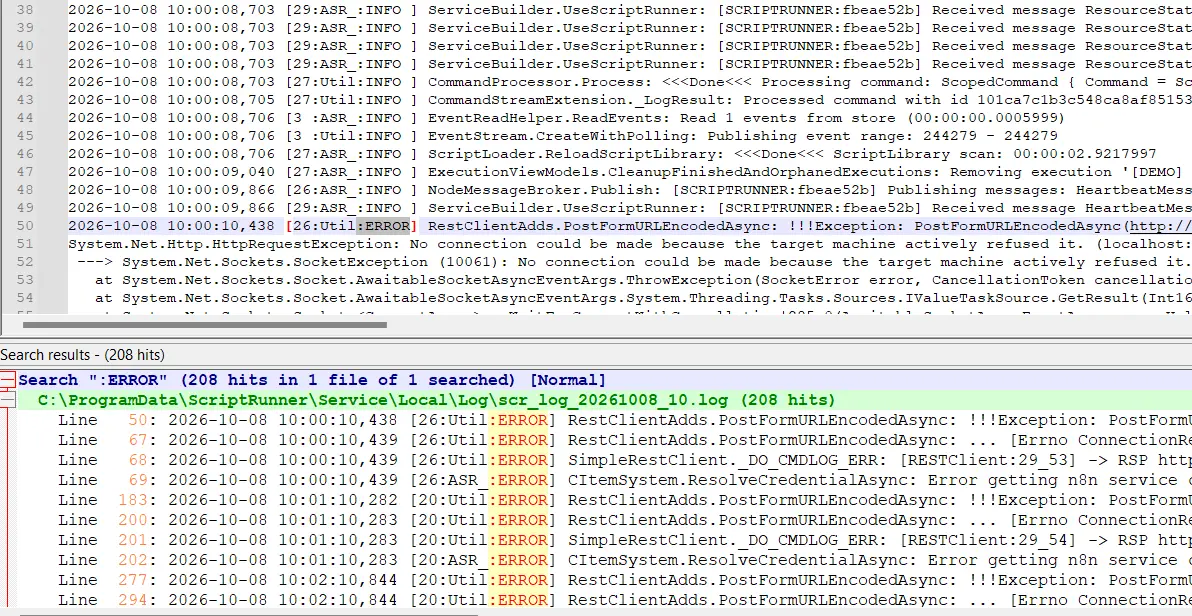
None of this rescues a script that swallows its errors: a catch block that discards the exception leaves nothing useful in either report. Good troubleshooting still starts with scripts written to be observable.
Troubleshooting That Survives Staff Turnover
With ScriptRunner, a failed action stops being a mystery owned by whoever wrote the script. Evidence from good and bad runs is kept, code changes are traceable, the execution context is a visible setting rather than an assumption, and the platform’s own logs sit in known locations. The result is shorter outages, fewer late-night console sessions and a straight answer when an auditor asks what happened to that offboarding. A practical next step is to add Write-Verbose to the five actions your service desk depends on most, before the next failure rather than during it.
