.svg)




Most IT organizations have invested years in their ticket system. Every request, change and incident already flows through Jira. Yet in many teams, the ticket is still just a to-do list for a human: someone reads it, logs on somewhere, does the work and types "done". The good news is that you don't need a new portal or a new process to change this. You need a few repeatable patterns that connect events in the ticket to automated actions. In this article, we take a look at five of them, built with ScriptRunner's Workflow Engine.
The Ticket System Is Already There - Use It
Many automation initiatives start by introducing something new: a self-service portal, a chatbot, a separate request form. Adoption is usually the problem. Users keep sending tickets the way they always have, and the new tool becomes one more place nobody checks. Meanwhile, the existing ticket queue keeps growing, filled with standard requests that follow the same steps every time.
The opposite approach works better: keep Jira as the front end and let automation react to what happens in the ticket. Users and agents keep working where they already work, and the automation runs in the background.
Why Ticket Rules Alone Fall Short
Jira's built-in automation rules are great for moving tickets around: setting fields, assigning queues, sending notifications. But they stop at the edge of the ticket system. They can't unlock an AD account, restart a service on a server or collect logs from a machine - at least not securely, with managed credentials and a proper audit trail. That part usually ends up in scripts on an admin's laptop, disconnected from the ticket and invisible to everyone else.
Every Pattern Starts with a Jira Event
The Workflow Engine has a built-in Jira trigger that listens for events: an issue is created, an issue is updated, a comment is added. Each of the five patterns below starts with one of these events and ends with a result written back to the ticket. The basic structure of such a workflow is explained in The Anatomy of an Automated IT Workflow. The same patterns also work with ServiceNow and other ticket systems through webhooks.
Pattern 1: Create → Fulfill
Jira event: issue created
The classic pattern. A standard request comes in - access to a file share, a software installation, a new license - and the workflow carries it out: approval if needed, a ScriptRunner Action to do the work, and a comment with the result before the ticket is closed. This is the right pattern for any request that follows the same steps every time. We walk through it in detail in The Anatomy of an Automated IT Workflow.
Pattern 2: Create → Enrich
Jira event: issue created
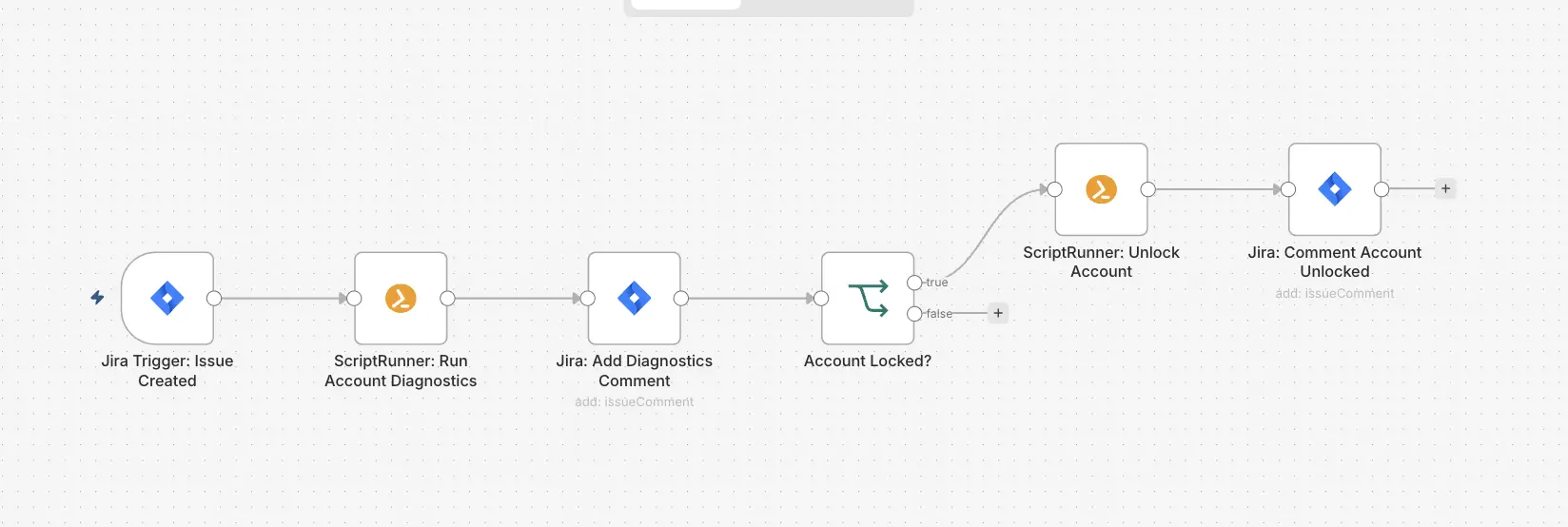
Not every ticket can be fixed automatically, but almost every ticket starts with the same fact-finding. Take the most common ticket of all: "I can't log in." The first ten minutes of every such ticket are spent checking the same things. Is the account locked? Has the password expired? Is the account disabled?
With this pattern, ScriptRunner does the fact-finding the moment the ticket is created and adds the result as a comment:
$user = Get-ADUser -Filter "UserPrincipalName -eq '$UserPrincipalName'" `
-Properties LockedOut, PasswordExpired, Enabled, LastLogonDate
"Locked: $($user.LockedOut) | Password expired: $($user.PasswordExpired) |
Enabled: $($user.Enabled) | Last logon: $($user.LastLogonDate)"
The simple cases can be solved right away: a locked account is unlocked automatically, and the same approach extends to other quick fixes, such as sending a self-service reset link for an expired password. Everything else lands with an agent who starts with the facts instead of from zero.
Pattern 3: Transition → Execute
Jira event: issue updated (status change)
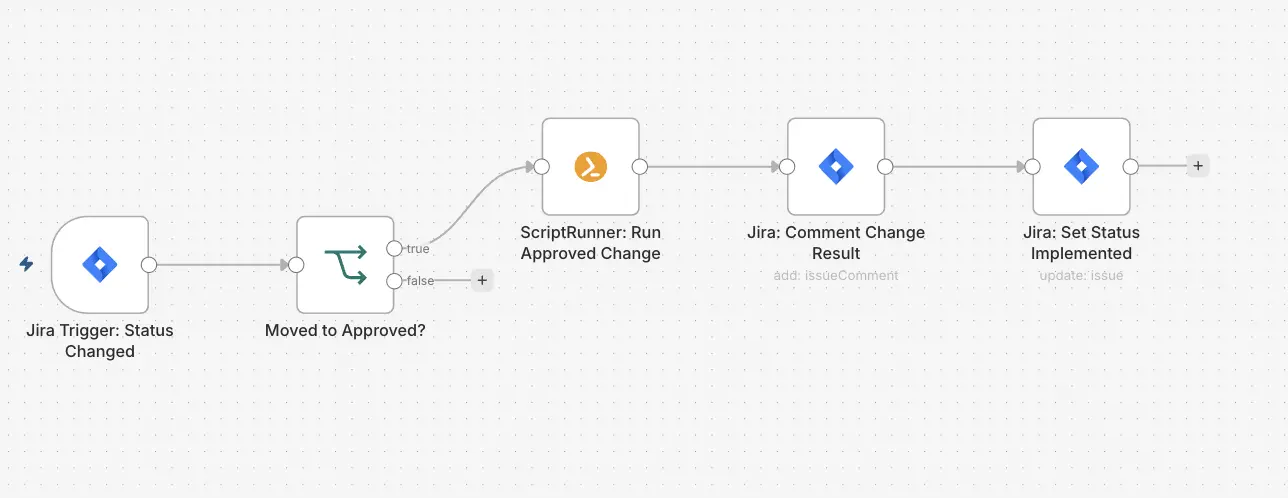
Many teams already have approvals built into their Jira workflow, for example for change requests. With this pattern, the status change itself becomes the trigger: when a change request moves to "Approved", the workflow runs the corresponding ScriptRunner Action and moves the ticket to "Implemented" with the result. The approval stays exactly where it already lives, in Jira. What changes is that "approved" in Jira and "done" in the infrastructure are no longer two separate worlds. For sensitive Actions, ScriptRunner can add its own approval gate on top - see Built-In Approval Workflows in ScriptRunner.
Pattern 4: Comment → Command
Jira event: comment created
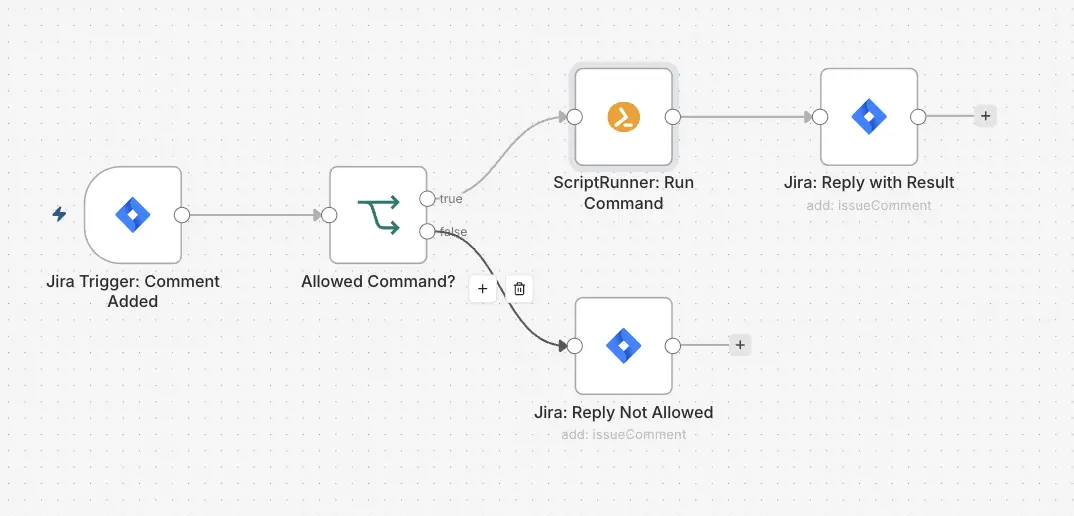
This pattern brings ChatOps into the ticket. An agent types a command as a comment - for example /collect-logs APP01 or /restart-service Spooler PRINT01. The workflow recognizes the command, checks that the agent is allowed to run it, calls the matching ScriptRunner Action and replies with the result as a new comment.
Agents never have to leave Jira or log on to a server. Only commands from an approved list can run, and only for authorized users. And every command, together with its result, is recorded in the ticket history - exactly where the next person working on the ticket will look.
Pattern 5: Alarm → Ticket
Event: monitoring alarm, outside of Jira
The last pattern turns the direction around. Instead of a ticket triggering automation, automation decides whether a ticket is needed at all. When a monitoring tool raises an alarm, the workflow first tries a known fix. Only if the problem persists does it create a ticket - with everything that was already tried. Resolved alarms are still logged as closed tickets, so recurring problems stay visible. We cover this pattern in Self-Remediating IT Operations.
Key Benefits
More value from your existing ticket system. Jira stays the front end for users and agents. No new portal, no new process to roll out.
Event-driven, not queue-driven. Work starts the moment something happens in the ticket, not when someone finds time to pick it up.
Secure execution beyond the ticket. ScriptRunner Actions run with managed credentials and permissions, so automation can safely reach AD, servers and cloud services.
Every action documented where people look. Results, diagnostics and commands are written back to the ticket, creating an audit trail without extra effort.
For more on auditability, see Audit in ScriptRunner: Making Enterprise Automation Traceable and Defensible.
Key Takeaways
• Keep Jira as the front end - let automation react to what happens in the ticket
• Create → Fulfill handles standard requests end to end
• Create → Enrich does the fact-finding before a human opens the ticket
• Transition → Execute turns an approved status into an executed change
• Comment → Command lets agents run approved commands without leaving Jira
• Alarm → Ticket creates tickets only when automation can't solve the problem
• The same patterns work with ServiceNow and other ticket systems through webhooks
Bottom Line
Your ticket system already knows what needs to be done. With five simple patterns and ScriptRunner's Workflow Engine, it can also start doing it: fulfilling standard requests, gathering facts, executing approved changes, running agent commands and filtering out alarms that automation can fix on its own - all documented in the ticket, all running with secure, managed credentials.
To see how these patterns can work with your Jira setup, book a meeting with us.