.svg)




If you have built Actions in ScriptRunner, you already know how input works: you declare parameters in the script’s param block, and ScriptRunner generates the input form for you. Then you build your first workflow, chain three or four Actions together, and an obvious question appears. There are now several param blocks. Which one produces the form? The answer is none of them. At workflow level, input is defined by you, in the Form editor, and then mapped down onto the Actions underneath. This article walks through how that works.
How Input Works for a Single Action
For a single Action, input is entirely script-driven. You write a param block, and ScriptRunner reads it to build the form:
param(
    [string]$GivenName,
    [string]$Surname,
    [string]$Password,
    [switch]$ChangePasswordAtLogon
)
A string becomes a text box, an integer becomes an integer field, a boolean becomes a checkbox, and a datetime becomes a date and time picker. Attach a query to a parameter and the text box becomes a populated drop-down instead. The script is the single source of truth for what the user is asked, and there is nothing to design and nothing to maintain in two places.
This is one of the most useful things about ScriptRunner, and it works so well that most administrators never think about it. Until they build a workflow.
Why That Model Does Not Extend to Workflows
A workflow is not a script. It is an orchestration of several Actions, each of which brings its own param block. That creates three problems at once.
First, no single param block describes the workflow. An onboarding workflow that creates an Entra ID user, then an Exchange mailbox, then assigns group membership has no one script that represents the whole request.
Second, combining them produces duplicates. The user creation Action needs a first name and a surname. The mailbox Action needs them too, to build the display name. If both sets of parameters surfaced on the form, the requester would be asked for the same values twice, with nothing guaranteeing they type them identically.
Third, combining them exposes parameters that users should never see. A group parameter expects an object ID, which no helpdesk operator will know. A switch such as ChangePasswordAtLogon is a policy decision the workflow owner makes once, not a question to put in front of every requester.
The script-driven model does not fail here because it is wrong. It fails because there is no single script left to be the source of truth. The workflow needs an input definition of its own.
The Answer: Define Input at the Workflow Level
Instead of deriving the form from a script, you define it directly on the workflow, in its Form editor tab. This flips the direction of authorship. With an Action, the script defines the form. With a workflow, you define the form first, and then map its values into the scripts underneath.
The practical consequence is that you decide what the workflow asks for, independently of what the underlying Actions happen to declare. Ask once for a value that three Actions need. Leave out parameters that should be fixed by policy. The rest of this article is the walkthrough.
Step 1: Add the Fields the Workflow Needs
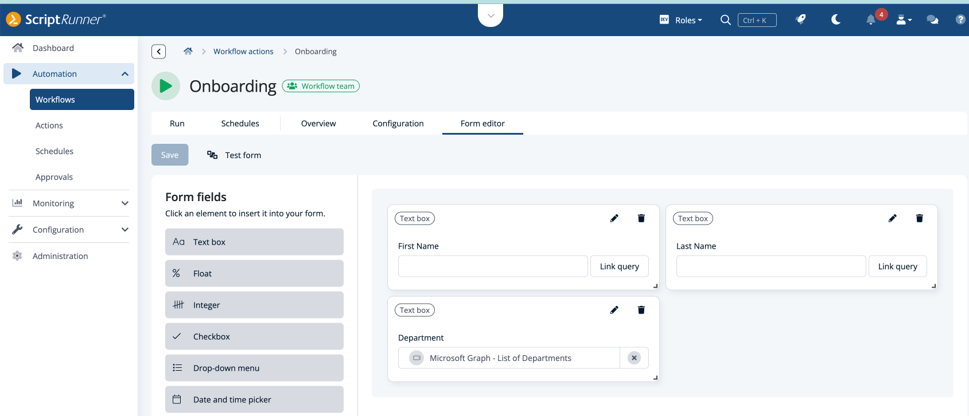
Open the workflow and switch to the Form editor tab. The Form fields panel on the left lists the element types available: text box, float, integer, checkbox, drop-down menu, and date and time picker. These deliberately mirror the parameter types you would otherwise declare in a param block, so the mental model carries over.
Click an element to insert it, then give it a label. In the onboarding example below, the workflow needs a first name, a last name, and a department, so those three fields go on the form. The layout you build here is exactly what your users will see.
Step 2: Bind Fields to Live Data Instead of Free Text
Each field carries a Link query option, and this is where the workflow form earns its keep. Rather than asking a user to type a value, you bind the field to a query that populates it dynamically.
In the example, Department is linked to a Microsoft Graph query that lists the departments in the tenant. The user sees readable department names; the workflow receives the corresponding object ID. That single decision removes an entire category of failure, because nobody has to look up, remember, or paste a GUID. It is the same query mechanism you already use on Action parameters, applied one level up.
If you have not set up queries before, or you want to see the full range of sources they can draw on, see Master ScriptRunner Queries: Smarter Parameters for Every Action.
Step 3: Check the Form Your Users Will See
Switch to the Run tab, and the fields you defined are rendered as the input form. Free-text fields appear as input boxes, and query-linked fields appear as populated drop-downs with a refresh control so the list can be re-read without reloading the page.
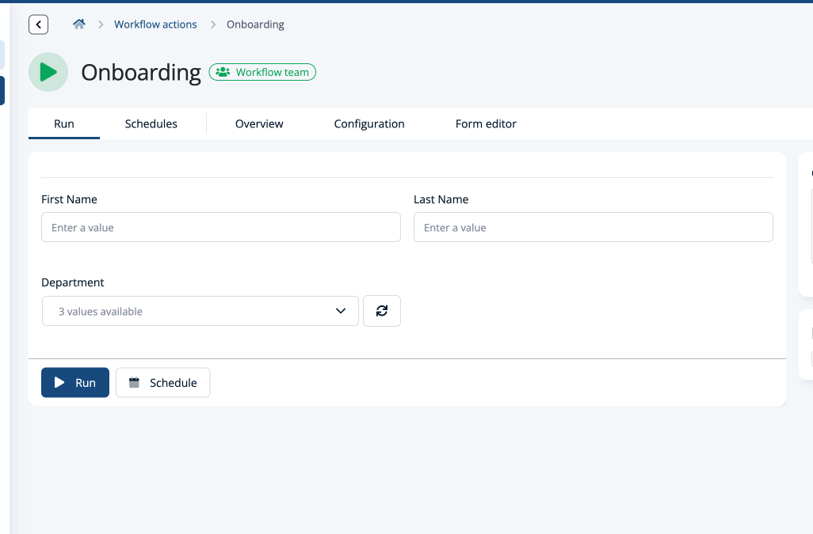
The user fills the form in and clicks Run. That is the whole interaction. If the work needs to happen later rather than now, the same completed form can be submitted through the Schedule button instead, and the values are carried into the scheduled run. For more on scheduling, see How to Master Scheduled Automation in ScriptRunner.
Step 4: See What the Workflow Engine Receives
On submission, the values are handed to the workflow engine as a single structured payload on the workflow’s trigger node. Opening that node shows exactly what arrived.
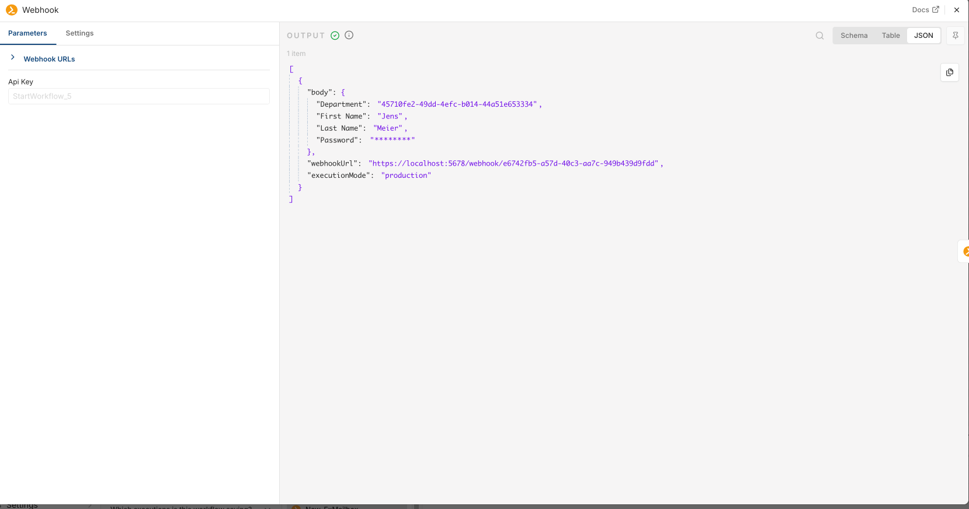
The submitted values sit under body, keyed by the field labels from the Form editor. First Name is "Jens", Last Name is "Meier", and Department is the object ID the query returned behind the friendly name the requester selected.
This payload is not consumed by the first step and discarded. It stays part of the execution context for the whole run, and it is visible, so a failed execution can be diagnosed by reading what was actually submitted rather than by guessing.
Step 5: Map the Payload onto Each Action
Now the mapping. Each node in the workflow runs a ScriptRunner Action, and that Action still has its param block, exactly as before. What changes is where the values come from: instead of a form generated from the parameters, the parameters are filled from the form you designed.
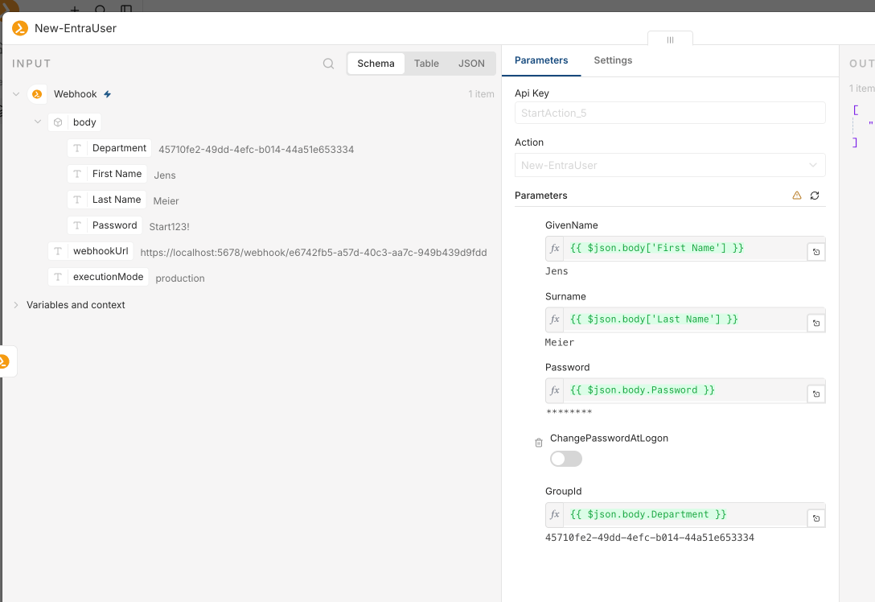
In the New-EntraUser node, GivenName is filled from First Name, Surname from Last Name, and GroupId from Department, which is the object ID that arrived from the query-linked drop-down. Each expression displays its resolved value underneath, so every mapping can be confirmed before anything executes.
Notice what is not mapped. ChangePasswordAtLogon is set directly on the node as a toggle, because it is a policy decision rather than a user input. This is the flexibility the workflow-level model buys you: a parameter can be filled from the form, fixed at the node, derived from an earlier step, or supplied by ScriptRunner itself. The requester only ever sees the fields you chose to expose.
Deciding What Should Not Be on the Form
The same control that lets you choose which fields to expose lets you choose which to withhold, and a password is the clearest example. It appears masked in the screenshots above, and in a production workflow it is better if it never travels through the form at all.
A form field is typed by a person, echoed back in the execution payload, and visible to anyone reviewing the run. That is acceptable for a department or a surname. It is not what you want for a credential. Because a parameter can be filled from the form, fixed at the node, derived from an earlier step, or drawn from ScriptRunner’s central credential store, an initial password is a strong candidate for the last two options: the Action generates or retrieves the value itself and delivers it out of band, so no secret is ever typed into a form or carried through the payload.
This is the same principle behind hidden credential parameters on individual Actions, and it applies with more force at workflow level, where a single payload may be read by several nodes.
For how ScriptRunner sources secrets from a dedicated external store rather than holding them itself, see Using Azure Key Vault with ScriptRunner: Getting Credentials Out of Scripts for Good.
Reusing the Same Input Further Down the Chain
Later nodes do not have to depend on what the previous node returned. They can reference the trigger node directly and read the original input again.
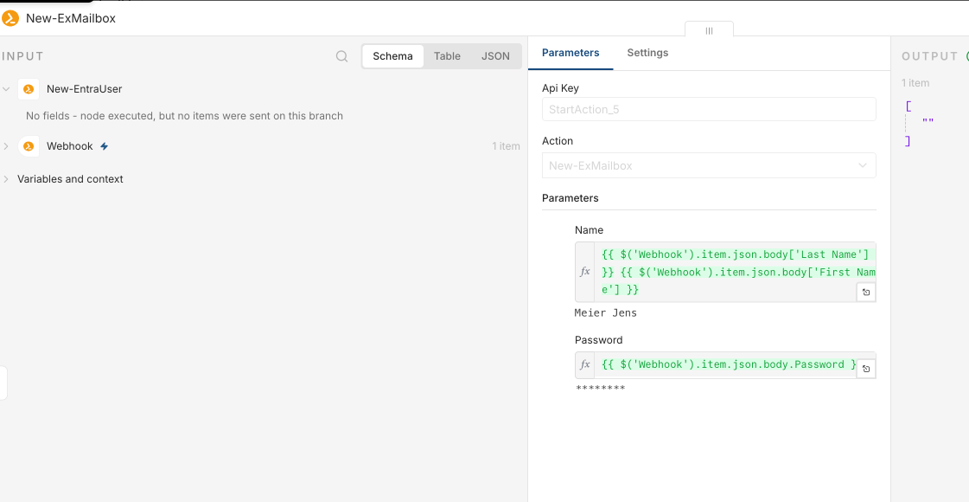
Here the New-ExMailbox node builds the mailbox name from Last Name and First Name, the very same two values New-EntraUser already consumed as Surname and GivenName. The preceding node returned nothing on this branch, and it makes no difference, because the original input is still available. This is the duplicate-parameter problem solved: one submission, read by as many Actions as need it, with no re-entry and no risk of the values drifting apart between steps.
Key Benefits
The form matches the request, not the scripts. You expose the fields that describe what is being asked for, rather than the union of every parameter every Action happens to declare.
Ask once, use everywhere. A value entered once is read by every node that needs it, so the surname that creates the account is by definition the surname on the mailbox.
Users select instead of guessing. Query-linked fields turn identifiers nobody memorises into a list of readable names, keeping the form human-friendly while the workflow receives machine-usable values.
Policy and secrets stay out of the requester’s hands. Parameters that should be fixed are set at the node, and credentials come from the credential store rather than a text field, so neither is re-decided or re-typed on every request.
Mapping is visible before it runs. Every parameter shows both its expression and its resolved value, so a misrouted field is caught while you are building rather than during an incident.
Key Takeaways
- For a single Action, ScriptRunner generates the input form automatically from the script’s param block
- A workflow contains several Actions, so no single param block can describe its input, and combining them creates duplicate and unwanted fields
- Workflow input is therefore defined at workflow level, in the Form editor, using typed fields that mirror PowerShell parameter types
- Any field can be linked to a query, so requesters select from live data instead of typing identifiers
- On submission, the values arrive at the trigger node as a single structured payload that stays available for the whole run
- Each node maps Action parameters to that payload through expressions, with resolved values shown before execution
- Parameters that should not come from the user are set at the node instead of being exposed on the form
- Credentials in particular belong in the credential store rather than in a form field, since form input is echoed in the execution payload
- Later nodes can reference the trigger node directly, so one submitted value can serve any number of Actions
Bottom Line
The param block is the right answer for a single Action and the wrong one for a workflow, because a workflow has no single script to describe it. ScriptRunner resolves this by moving the input definition up a level: you design the form on the workflow, bind fields to live data where it helps, and map the resulting payload onto each Action’s parameters. The requester answers one clear set of questions, and every step underneath gets exactly the values it needs.
To see how workflow-level forms could simplify your automation, book a meeting with us.