


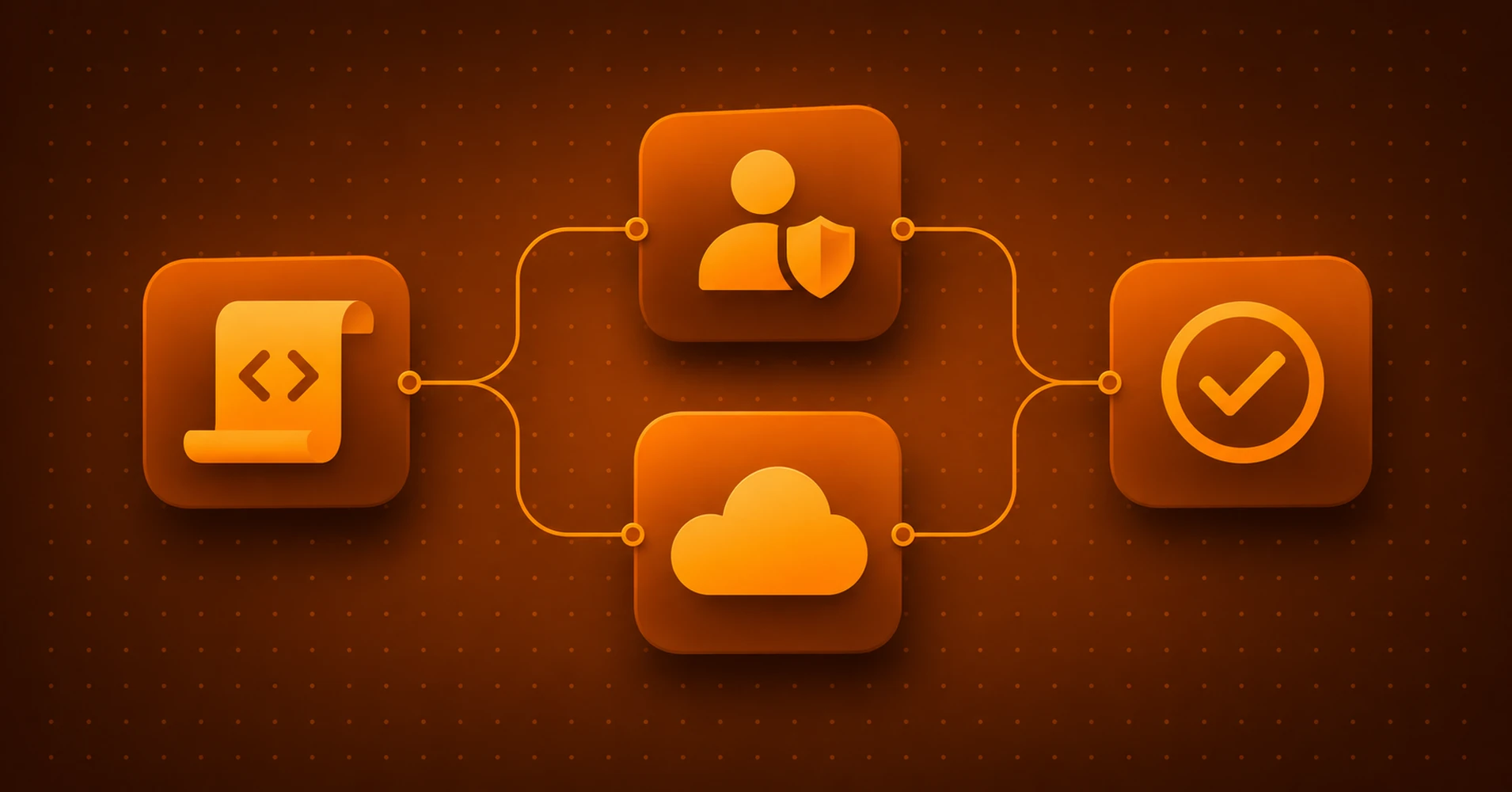
IT orchestration connects tasks so that the process can move forward without someone relaying each step. Take, for example, onboarding. The scripts ran and the accounts are ready. But your new hire still can't get to work. Someone still needs to assign a license, check the mailbox, or pass the request to another team. In Microsoft IT, even a routine process can cross Active Directory, Entra ID, Microsoft 365, Exchange, and the IT service management (ITSM) tool. Automating each task leaves those handoffs to be managed. With IT orchestration and workflows, you define the order of work, the conditions for proceeding, and what happens when a step needs approval or fails.
What Is IT Orchestration?
IT orchestration links automated tasks across systems so a process can run the same way each time. A workflow defines which tasks run, how they share data, and when they must wait.
Microsoft describes the gap in its Overview of System Center Orchestrator: "You may have automated individual tasks, but typically, not the whole process." The NIST glossary entry for orchestration makes a similar point about the sequence and conditions in which services call one another. Its definition comes from a 2004 W3C glossary of web services, but the principle applies here, too.
An IT workflow needs to account for six things:
- Trigger. An HR record, a ticket, a schedule, or an alert starts the process.
- Sequence. Steps run in a defined order, with parallel branches for tasks that don't need to wait for each other.
- Conditions. Data from earlier steps decides what happens next.
- Approval. Where approval is needed, the workflow waits for the person who can give it.
- Error handling. A failed step follows a defined path, which may stop the run, retry the task, or alert its owner.
- Record. A run history shows what happened and links to the logs needed to find faults.
The anatomy of an automated IT workflow shows how these elements work together.
IT Automation vs. IT Orchestration: What's the Difference?
The difference is scope. A script can create an account, but other tasks must finish before the user can work. Orchestration connects those tasks to complete the request. It's a form of automation, and it can reuse the scripts your team already maintains.
A fast script offers limited benefit if the next task waits in a ticket queue. A workflow can start that task as soon as its conditions are met. It must of course still allow for approvals, system delays, and failures.
Why Do Automated Tasks Still Leave Manual IT Processes?
Onboarding shows how this happens. You need an HR record, a ticket, accounts, licenses, groups, a mailbox, and a device. Your team may have a script for most of these steps, but each handoff still depends on a person, a ticket, or an email. Requests wait for someone to pick them up, and missed steps can go unnoticed. That's where the hidden cost of manual onboarding and offboarding builds up.
A May 2026 audit at the IRS shows the cost of leaving a required step outside the automated process. The Treasury Inspector General for Tax Administration reviewed 22,610 high-priority incident tickets generated between April 2023 and September 2024. Its report, Incident and Service Ticket Management Needs Improvement, found that 19,968 tickets (88%) were unnecessary. Automated monitoring had created them during planned downtime.
IRS policy required staff to request that monitoring be turned off 48 hours before planned downtime. Server or application owners hadn't followed that process, leaving staff to review and close needless tickets. The case illustrates a weakness in the handoff: automated monitoring still depended on a separate manual request to account for planned maintenance.
Other gaps are less visible. An account may be created without a license, leaving someone to discover and complete the work. An approval may remain in an inbox, making the evidence hard to find later. If only one expert knows the full process, their absence can delay it.
ScriptRunner's State of Microsoft Automation 2026 benchmark suggests that partial integration is common among the teams surveyed. From October to December 2025, ScriptRunner surveyed 180 IT managers and senior system engineers at enterprises with at least 1,000 employees. Only 17% reported full integration across ITSM, monitoring, and infrastructure tools; 66% reported partial integration, and 17% operated in silos. These are respondents' assessments of their own environments.
What Changes When IT Processes Are Orchestrated?
A workflow defines the handoffs along with the tasks. For planned maintenance, a workflow can suspend monitoring before work starts and restore it afterward. The error path must also restore monitoring if the work fails.
The same approach gives unfinished work an owner. If a license can't be assigned to a new account, the workflow can alert the team responsible and follow the recovery steps you've defined. Required approvals stay linked to the work, and staff with the right access can run the process without relying on one person's memory.
This approach also appears in formal change controls. NIST SP 800-53, Revision 5, control enhancement CM-3(1), describes automated mechanisms that document proposed changes, notify approvers, flag overdue decisions, and prevent changes until approval arrives. They also document completed changes and notify staff. This shows how a control can be built into a workflow. Whether it applies depends on which controls the organization must meet.
We Already Have Scripts, Power Automate, and Lifecycle Workflows. Why Add Orchestration?
Start with the work your team does by hand or keeps running with custom scripts. Before adding a platform, check where the current workflow ends and where people still take over. A new layer should fill a clear gap and save enough work to be worth maintaining.
Can We Keep Our Scripts?
Yes. A script that does its job well is a useful building block. Orchestration adds the sequence, conditions, and error handling that connect it to other tasks. Some scripts may need changes so their inputs and results work with the workflow.
What Does Entra Lifecycle Workflows Cover?
Entra Lifecycle Workflows manages joiner, mover, and leaver tasks for Microsoft Entra ID users, including users synchronized from Active Directory. Microsoft's licensing guidance requires Microsoft Entra ID Governance or Microsoft Entra Suite licenses.
In hybrid environments, changes made in Active Directory must synchronize before Lifecycle Workflows can use them. Microsoft's guidance for synchronized users also identifies limits: built-in group tasks can't manage groups synchronized from Active Directory. However, with additional configuration, user account tasks can enable, disable, or delete accounts in Active Directory.
Logic Apps can extend Lifecycle Workflows for more complex scenarios. Map the work left over, such as file-share access or ticket updates, to see whether those extensions are enough. The full process needs an owner whether it runs in one platform or several.
Is Power Automate Enough?
Yes, if a flow can complete the whole process and your team can support it. Test this with a real process and check these points:
- Scripts and on-premises systems. Microsoft's connector list shows no connector for PowerShell or on-premises Active Directory. Check that the available options, such as desktop flows or the Azure Automation connector, fit your hybrid systems and licenses.
- Failure handling. A failed step follows a defined path, and unfinished work goes to an owner.
- Run records. Purview audit logs cover flow and permission changes, not runs. Microsoft's published Power Automate limits set run retention at 30 days. If an audit can ask about older runs, decide where you will keep that evidence.
- Delegation. Run-only sharing applies to instant flows. Check that it covers the people who need to start each process.
- Time limit. The same limits set a 30-day maximum for a single cloud flow run, including pending approvals. Pending steps time out after that period.
If a process fails one of these checks, your team may fill the gap with custom scripts and manual steps. That brings back the upkeep and risks of homegrown automation. In that case, compare Power Automate with a dedicated orchestration platform.
Will Another Layer Add More Maintenance?
Compare it with what you maintain today. Homegrown automation already has a layer of scheduled tasks, wrapper scripts, stored credentials, logs, and custom forms. Your team builds and repairs these parts, and the knowledge often stays with the person who wrote them. Scripts that grow this way can also run without clear access rules or a usable record. A platform replaces much of this upkeep with upgrades and configuration, although your team still maintains the scripts and workflows.
Test the connections to your other tools before you commit. An API call can start work in another tool, but the workflow must also track whether that work succeeds or fails.
Will Approval Gates Slow Us Down?
An approval still takes time, wherever it happens. The workflow makes the decision easier to track and keeps work on hold until it's approved.
A November 2024 Audit of Systems Access Control at Veterans Affairs Canada shows why the record matters. Auditors tested samples of 172 and 185 new system access requests from 2023. Approval evidence was usually an email. Only 50% of the first sample and 49% of the second clearly had approvals attached to the request log. This doesn't mean that all the others lacked approval. Recording the decision in the workflow makes it easier to check later.
What Should You Look For in a Workflow Orchestration Platform for Microsoft IT?
Once you know where the gaps are, test each platform against a real process from your team. Look for six capabilities:
- Triggers. A ticket, a schedule, an API call, or a form can start the process. Compare the automation trigger types for enterprise workflows before choosing one for each process.
- Multi-step design. The platform supports sequential and parallel branches. A visual workflow engine can help the people who know the process review its logic.
- Conditions and error handling. Steps can branch on earlier results. You can define and test the failure path before the first production run.
- Reuse. Existing scripts, runbooks, and APIs can serve as steps. An API integration strategy helps define how they exchange inputs, results, and status.
- Approval and delegation. Authorized staff can approve or start workflows with the access their role requires. Forms should collect only the inputs needed; mapping form input to actions explains how to connect them.
- Traceability. Staff can follow a run from its trigger through to its result, then inspect the relevant logs. ScriptRunner's guide to debugging workflows across two reporting layers shows why both the overall record and step-level detail matter.
How ScriptRunner Fits
ScriptRunner combines workflow orchestration with controlled execution for Microsoft IT. Its Workflow Engine, introduced in Enterprise Version 8, provides a visual designer for multi-step workflows. The steps are ScriptRunner Actions, API calls, and webhooks, and a workflow can include conditions, error handling, and sequential and parallel branches.
The ScriptRunner Portal lets administrators create workflow actions with input forms, manage access, and monitor runs. Each workflow run appears in the Reports section, with the Actions it ran listed below it. Each Action record shows what started it, its target, runtime, and log. The Workflow Engine provides further detail about the data and logic at each node. ScriptRunner Workflows explains how these parts fit together.
You can keep using your existing tools. ScriptRunner automation workflows can orchestrate existing components such as Azure runbooks, Logic Apps, and others including Ansible.
These controls also matter when AI agents start work. An agent can request an action through a defined workflow, with rules that limit what it can run and when it needs approval. An orchestration strategy for agentic automation should specify which processes agents may start and when human review is required.
Where Does Orchestration Create Value?
For admins and architects, the main gain is less work passing on tasks and finding out where a process stopped. A useful run record points to the failed step and its logs, though staff may still need to check where the system failed. Changes to the sequence can be made in the workflow; changes to a task may still require a script edit.
For IT leaders, fewer manual handoffs can shorten request times and reduce the need to rely on a small number of experts. Saving approvals and results as the work runs also makes them easier to find. The value depends on how much time the team spends passing on tasks and fixing failed runs.
The time needed to build a workflow varies. In ScriptRunner's 2026 benchmark, 41% of respondents said they could build a new workflow within hours using low-code tools. Another 34% needed days, while 25% needed weeks and depended on developer availability.
Bechtle, an IT services group with 70 IT system houses, offers one customer example. Its ScriptRunner case study describes teams defining a standard workflow for each task before deciding how much they can automate or delegate. The story reports 30% time savings for 2nd- and 3rd-level teams, with no baseline or method. That result comes from automated and delegated tasks before ScriptRunner added its Workflow Engine, so the potential savings from deploying entire governed automation workflows could exceed the reported numbers by a considerable amount.
How Do You Orchestrate Onboarding and Offboarding Across Active Directory, Entra ID, and Microsoft 365?
Start by defining when the work is complete. Creating an account is only part of onboarding; the employee also needs the right access, working services, and any required equipment. The workflow must check that these are in place before it reports success.
If your team uses synced identities and Exchange Online mailboxes, a basic onboarding workflow could:
- Start from an approved HR record.
- Create the account in Active Directory and apply the required attributes.
- Wait for the account to synchronize to Entra ID and verify that it's available.
- Assign the required groups and licenses in the order your provisioning design requires.
- Confirm that mailbox provisioning and other required setup have completed.
- Record the result and notify the manager, including the status of any separate device tasks.
For offboarding, define the departure time and required approvals before the workflow runs. It could then:
- Disable access in the relevant on-premises and cloud systems.
- Revoke supported sessions and check for access that needs separate action.
- Remove access and group memberships according to the offboarding plan.
- Apply the agreed mailbox and data-retention steps, including conversion to a shared mailbox where appropriate.
- Verify the results and flag any incomplete work for its owner.
These outlines need to be adapted to your systems. Group-based licensing and hybrid Exchange settings can affect the order of operations. If you convert a user mailbox to a shared mailbox, check the licensing and account requirements before removing licenses or deleting accounts.
Removing access on time is a key reason to connect these steps. A 2024 audit at Shared Services Canada, the Canadian government's IT service provider, identified 1,889 departure records from April 2022 to March 2023. Only 744 had enough data to show when access was removed. Of those, 154 (21%) showed that access was removed within one day. Auditors used the identity team's one-day ideal as their benchmark. The teams involved had no clear, shared service standard.
You can use the same approach for other processes:
- Access requests: validate the request, obtain approval, change access, set any expiry, and record the result.
- Shared mailbox or Teams provisioning: collect requirements, create the resource, assign access, and confirm completion.
- Planned maintenance: suspend monitoring, perform the work, verify the result, and restore monitoring, with a recovery path for failures.
- Role changes: coordinate the removal of old access and the addition of new access in one workflow.
How Do You Connect ITSM Tickets to Automated Execution?
For work that begins with a ticket, approval can trigger the first task. The ITSM tool remains the system of record, while the orchestration layer carries out the work and reports back. The ticket should show whether the work succeeded, failed, or still needs attention.
ScriptRunner, the PowerShell automation platform for Microsoft IT, integrates with ITSM platforms like ServiceNow and Jira via REST APIs and webhooks. ITSM systems such as ServiceNow, Ivanti, and Matrix42 can start defined Actions through web service connectors. ScriptRunner then returns results and status to the calling system. This is the basis for closing the ITSM approval-to-execution gap. The event-driven Jira automation patterns provide examples of how to apply it.
How Does Orchestration Relate to Governance, Delegation, and Consolidation?
Connecting tasks leaves some questions to settle. The tasks must run well, access rules must be clear, and someone must own the workflow and keep it up to date.
Enterprise PowerShell automation provides controlled execution for the tasks a workflow calls. Start with enterprise PowerShell automation for Microsoft IT if your scripts are still scattered across servers and schedulers.
Automation governance defines the policies, audit trail, and evidence required for each run. Those requirements should shape the workflow from the start, as described in automation governance and compliance for Microsoft IT.
Secure delegation and approval determines who may request, approve, and run each process, and which rights it uses. Set those boundaries before making workflows available to help desk staff or end users.
Automation tool consolidation addresses overlapping schedulers, script stores, and custom tools. Mapping workflows often reveals tools that do the same job. Before you retire one, check that all its tasks have a supported home.
How Do You Start With IT Orchestration?
Choose a process that runs often, has clear rules, and takes too much time to pass between teams. Onboarding may fit, though a smaller access request can be easier to build and test first.
- Map the process: steps, systems, owners, approvals, and the conditions for completion.
- Standardize the tasks so they accept consistent inputs and return usable results.
- Bring execution under control, including permissions and logging.
- Build the workflow with its trigger, sequence, conditions, and failure paths.
- Include required approvals and records in the process.
- Test success and failure cases, including delays and incomplete work.
- Delegate access to the staff and requesters who need it.
- Measure the result: completion time, manual intervention, failed runs, and recovery effort.
- Use those findings to choose the next process and retire tools that are no longer needed.
Keep a written roadmap as the work expands. In ScriptRunner's 2026 benchmark, 30% of respondents had a defined automation roadmap, 40% worked from informal plans, and 30% automated ad hoc. A written plan helps teams agree on what to build next and who will own it.
The first workflow should give you a clear result to judge: fewer handoffs, a shorter wait, or faster recovery when something fails. Use that evidence to decide where orchestration is worth extending next. Read more about orchestration and workflows with ScriptRunner or contact us to book a demo.